> ## Documentation Index
> Fetch the complete documentation index at: https://docs.nikaplanet.com/llms.txt
> Use this file to discover all available pages before exploring further.
# Invite to Team
> Learn how to invite users to your team and manage team access permissions
# Invite to Team
Inviting users to your team allows you to collaborate on projects, share resources, and manage access permissions collectively. This guide will walk you through the step-by-step process of inviting new team members using the NikaPlanet interface.
## Overview
Team invitations enable you to:
* Add new collaborators to your workspace
* Assign appropriate permission levels
* Manage team access centrally
* Streamline collaboration workflows
## How to Invite Users to Your Team
### Step 1: Navigate to Settings
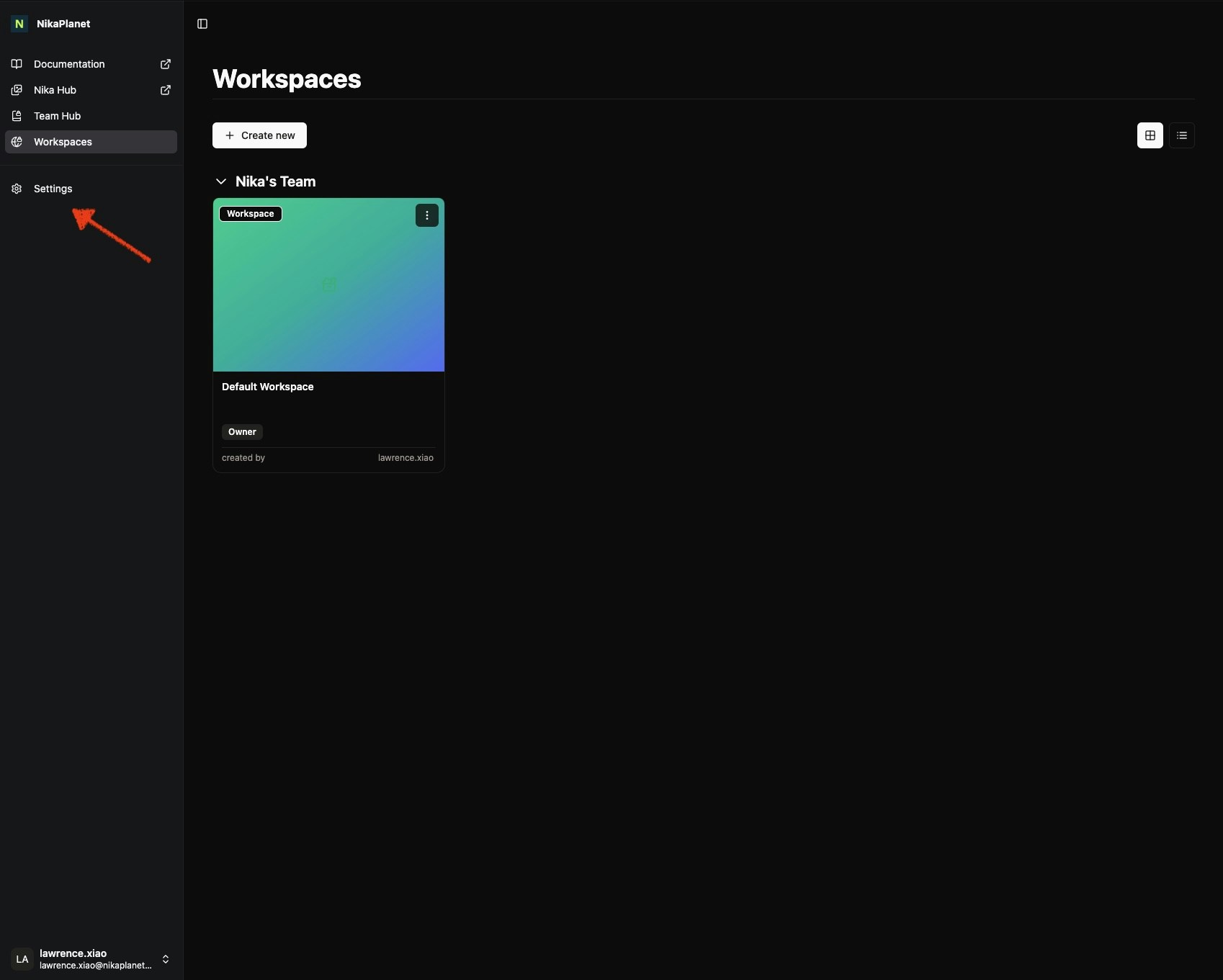
From your main workspace view, click on **Settings** in the left navigation sidebar.
 ### Step 2: Access Team Members
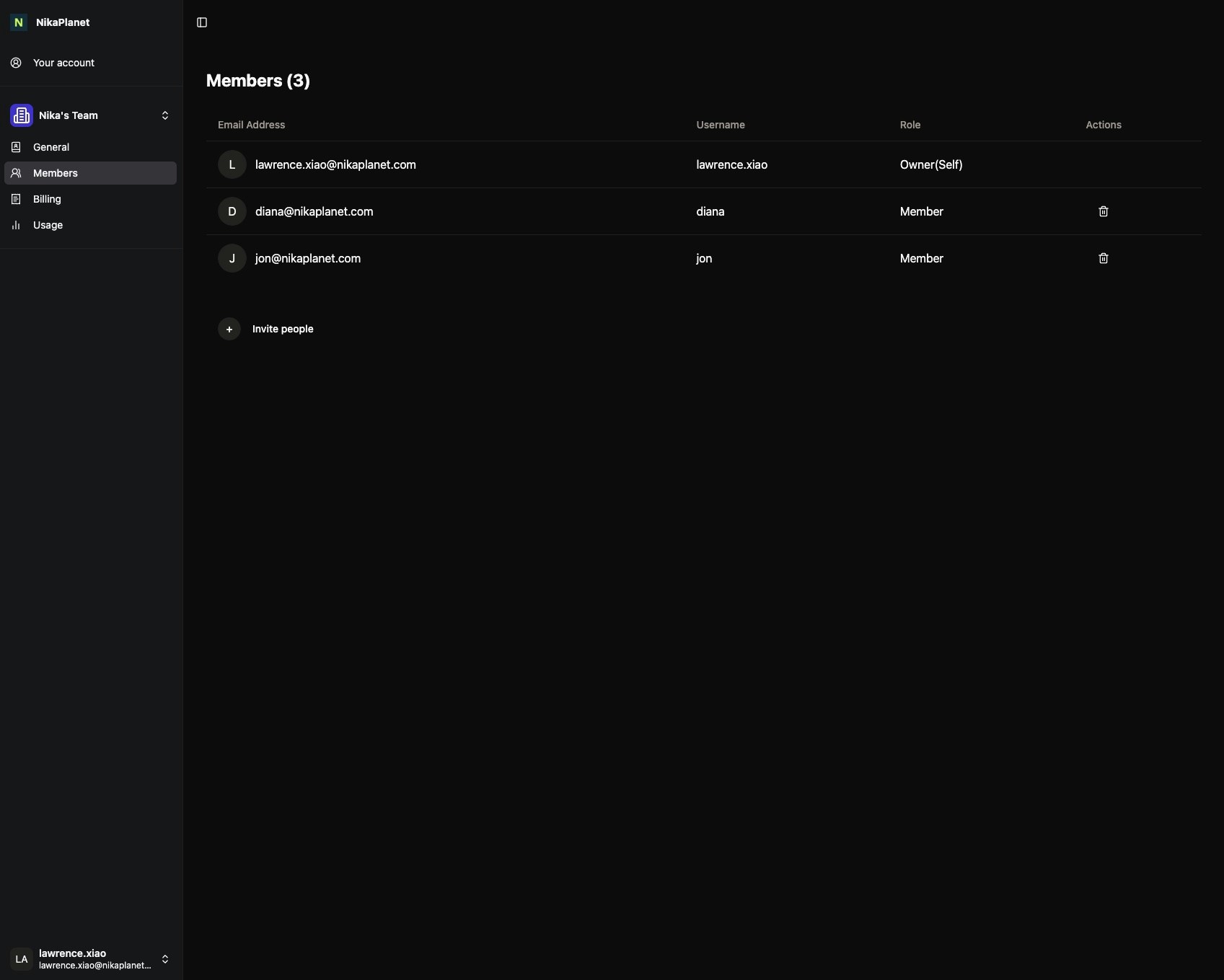
In the Settings section, you'll see your team information in the left sidebar. Make sure you select the right team before clicking on **Members** under your team name to access the team members page.
### Step 2: Access Team Members
In the Settings section, you'll see your team information in the left sidebar. Make sure you select the right team before clicking on **Members** under your team name to access the team members page.
 ### Step 3: Invite New Members
On the Members page, you'll see a list of current team members. To add someone new, click the **"Invite people"** button below the member list.
### Step 4: Send Invitation
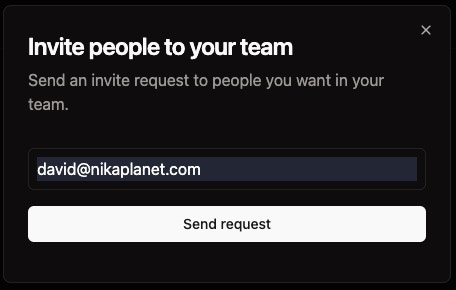
A dialog will open where you can enter the email address of the person you want to invite. Enter their email and click **"Send request"** to send the invitation.
### Step 3: Invite New Members
On the Members page, you'll see a list of current team members. To add someone new, click the **"Invite people"** button below the member list.
### Step 4: Send Invitation
A dialog will open where you can enter the email address of the person you want to invite. Enter their email and click **"Send request"** to send the invitation.
 ## What Happens Next
### Invitation Sent
Once you send the invitation:
* The new member will appear in your Members list with a "Pending" status
* An email invitation will be sent to the invitee's email address
* The invitation will expire in 7 days if not accepted
### Invitee Receives Email
The person you invited will receive an email that looks like this:
## What Happens Next
### Invitation Sent
Once you send the invitation:
* The new member will appear in your Members list with a "Pending" status
* An email invitation will be sent to the invitee's email address
* The invitation will expire in 7 days if not accepted
### Invitee Receives Email
The person you invited will receive an email that looks like this:
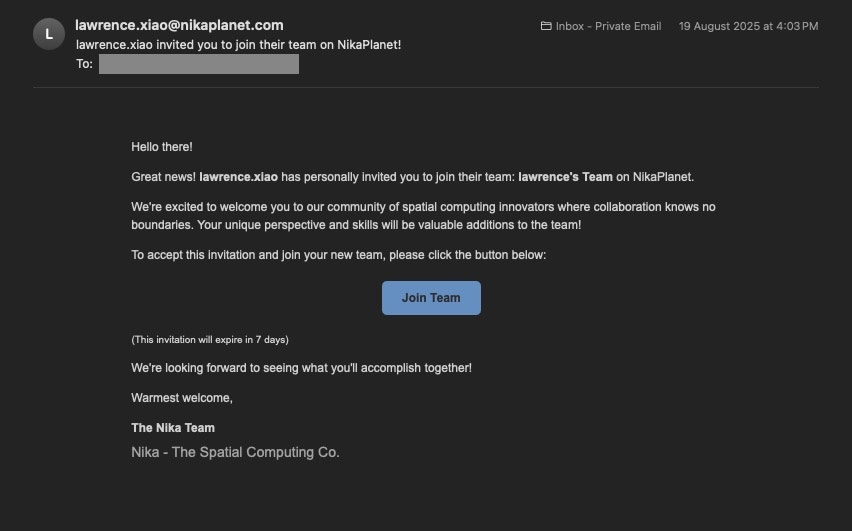 The email contains:
* A personalized invitation message
* A **"Join Team"** button to accept the invitation
* Information about the team they're being invited to join
* Expiration details (7 days)
### Invitation Acceptance
When the invitee clicks the **"Join Team"** button in their email:
* They'll be redirected to create or sign into their NikaPlanet account
* Once accepted, their status will change from "Pending" to "Active" in your Members list
* They'll have immediate access to the team resources based on their assigned role
## Managing Team Members
### Current Members
Your Members page shows all team members with their:
* Email address
* Username
* Role (Owner, Member, etc.)
* Actions available (delete, change role, etc.)
### Pending Invitations
Track the status of sent invitations:
* **Pending**: Invitation sent but not yet accepted
* **Active**: User has joined the team
* **Expired**: Invitation has expired and needs to be resent
### Resending Invitations
If an invitation expires or the user doesn't respond, you can resend the invitation from the Members management interface.
## Permission Levels
Team members typically have these access levels:
* **Owner**: Full access to team settings and member management
* **Member**: Can access team resources and collaborate on projects
* **Custom**: Tailored permissions based on specific needs only for **Enterprise License** users
## Best Practices
1. **Clear Communication**: The invitation email automatically includes context about your team
2. **Appropriate Permissions**: Start with standard member access and adjust as needed
3. **Regular Review**: Periodically review team member access and permissions
4. **Follow Up**: Check with invitees if they haven't accepted within a few days
## Workspace Access and Team Permissions
### Creating Workspaces Under Teams
When you create a new workspace using the "Create New Workspace" dialog, it will automatically be associated with the selected team and default to giving **"Can edit"** access to all team members.
The email contains:
* A personalized invitation message
* A **"Join Team"** button to accept the invitation
* Information about the team they're being invited to join
* Expiration details (7 days)
### Invitation Acceptance
When the invitee clicks the **"Join Team"** button in their email:
* They'll be redirected to create or sign into their NikaPlanet account
* Once accepted, their status will change from "Pending" to "Active" in your Members list
* They'll have immediate access to the team resources based on their assigned role
## Managing Team Members
### Current Members
Your Members page shows all team members with their:
* Email address
* Username
* Role (Owner, Member, etc.)
* Actions available (delete, change role, etc.)
### Pending Invitations
Track the status of sent invitations:
* **Pending**: Invitation sent but not yet accepted
* **Active**: User has joined the team
* **Expired**: Invitation has expired and needs to be resent
### Resending Invitations
If an invitation expires or the user doesn't respond, you can resend the invitation from the Members management interface.
## Permission Levels
Team members typically have these access levels:
* **Owner**: Full access to team settings and member management
* **Member**: Can access team resources and collaborate on projects
* **Custom**: Tailored permissions based on specific needs only for **Enterprise License** users
## Best Practices
1. **Clear Communication**: The invitation email automatically includes context about your team
2. **Appropriate Permissions**: Start with standard member access and adjust as needed
3. **Regular Review**: Periodically review team member access and permissions
4. **Follow Up**: Check with invitees if they haven't accepted within a few days
## Workspace Access and Team Permissions
### Creating Workspaces Under Teams
When you create a new workspace using the "Create New Workspace" dialog, it will automatically be associated with the selected team and default to giving **"Can edit"** access to all team members.
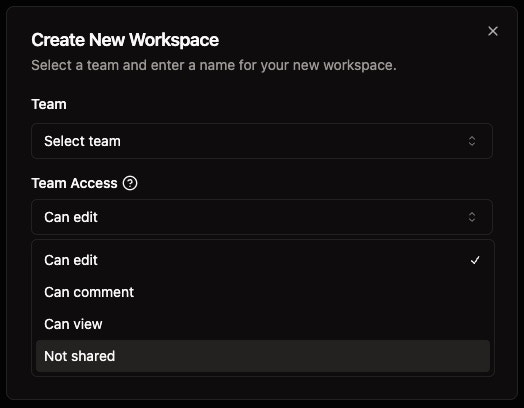 **Before Creation**: You can configure the default team access level:
* **Can edit**: Team members can modify and manage the workspace
* **Can comment**: Team members can view and add comments
* **Can view**: Team members have read-only access
* **Not shared**: Other members of the team will not be able to access this workspace
### Managing Workspace Access After Creation
Once a workspace is created, you can modify team access permissions by:
1. **Opening the Share Dialog**: Click the share button in the top right corner of any workspace
2. **Accessing "People with access"**: Navigate to the "People with access" section
3. **Modifying Team Permissions**: Change the access level for "Nika's Team" or individual team members
**Before Creation**: You can configure the default team access level:
* **Can edit**: Team members can modify and manage the workspace
* **Can comment**: Team members can view and add comments
* **Can view**: Team members have read-only access
* **Not shared**: Other members of the team will not be able to access this workspace
### Managing Workspace Access After Creation
Once a workspace is created, you can modify team access permissions by:
1. **Opening the Share Dialog**: Click the share button in the top right corner of any workspace
2. **Accessing "People with access"**: Navigate to the "People with access" section
3. **Modifying Team Permissions**: Change the access level for "Nika's Team" or individual team members
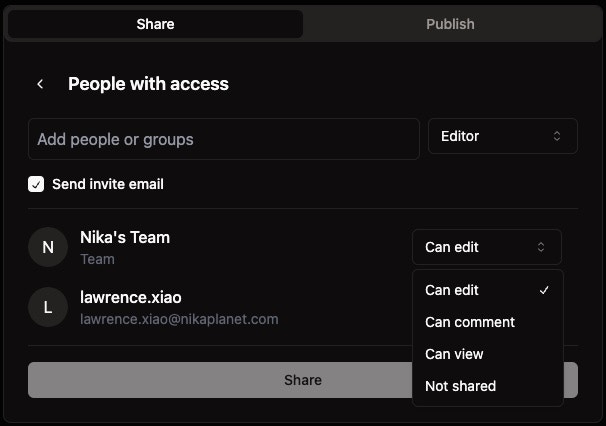 **Available Permission Levels**:
* **Can edit**: Full editing and management capabilities
* **Can comment**: Ability to view and add comments
* **Can view**: Read-only access to workspace content
* **Not shared**: No access to the workspace
**Additional Options**:
* **Send invite email**: Automatically notify team members of access changes
* **Individual member management**: Set different permissions for specific team members vs. the entire team
## Troubleshooting
### Common Issues
* **Invitation Not Received**: Ask the invitee to check their spam/junk folder
* **Permission Errors**: Ensure the user has the correct role assignments
* **Team Access**: Verify the user is assigned to the correct team(s)
### Getting Help
If you encounter issues with team invitations, contact your team administrator or reach out to NikaPlanet support for assistance.
## Next Steps
After successfully inviting team members:
* [Invite to Workspace](/guides/access-control/invite-to-workspace) - Learn how to invite users to specific workspaces
**Available Permission Levels**:
* **Can edit**: Full editing and management capabilities
* **Can comment**: Ability to view and add comments
* **Can view**: Read-only access to workspace content
* **Not shared**: No access to the workspace
**Additional Options**:
* **Send invite email**: Automatically notify team members of access changes
* **Individual member management**: Set different permissions for specific team members vs. the entire team
## Troubleshooting
### Common Issues
* **Invitation Not Received**: Ask the invitee to check their spam/junk folder
* **Permission Errors**: Ensure the user has the correct role assignments
* **Team Access**: Verify the user is assigned to the correct team(s)
### Getting Help
If you encounter issues with team invitations, contact your team administrator or reach out to NikaPlanet support for assistance.
## Next Steps
After successfully inviting team members:
* [Invite to Workspace](/guides/access-control/invite-to-workspace) - Learn how to invite users to specific workspaces