> ## Documentation Index
> Fetch the complete documentation index at: https://docs.nikaplanet.com/llms.txt
> Use this file to discover all available pages before exploring further.
# Create your First Map
> Learn how to create a new map, customize basemaps, and set up your initial view
Learn how to create a new map in NikaMap, customize basemaps, and set up your initial view. Everything gets persisted automatically, so your map will look exactly the same when you reopen it.
## Step 1: Access NikaMap
1. **Navigate to NikaMap**: In NikaWorkspace, click on the Globe icon in the left sidebar
2. **View Map List**: You'll see a list of your existing maps on the left panel
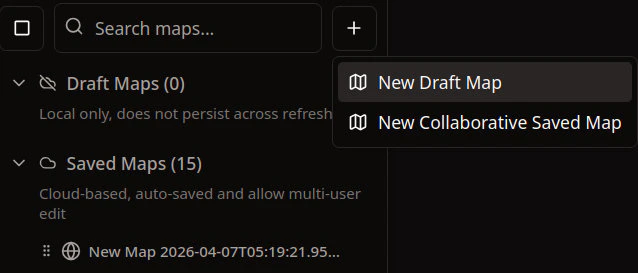
3. **Create New**: Click the "+" button to see two options.
* **Draft maps** are erased on refresh
* **Collaborative Saved maps** persist between sessions.
For now I recommend choosing **Collaborative Saved Map**
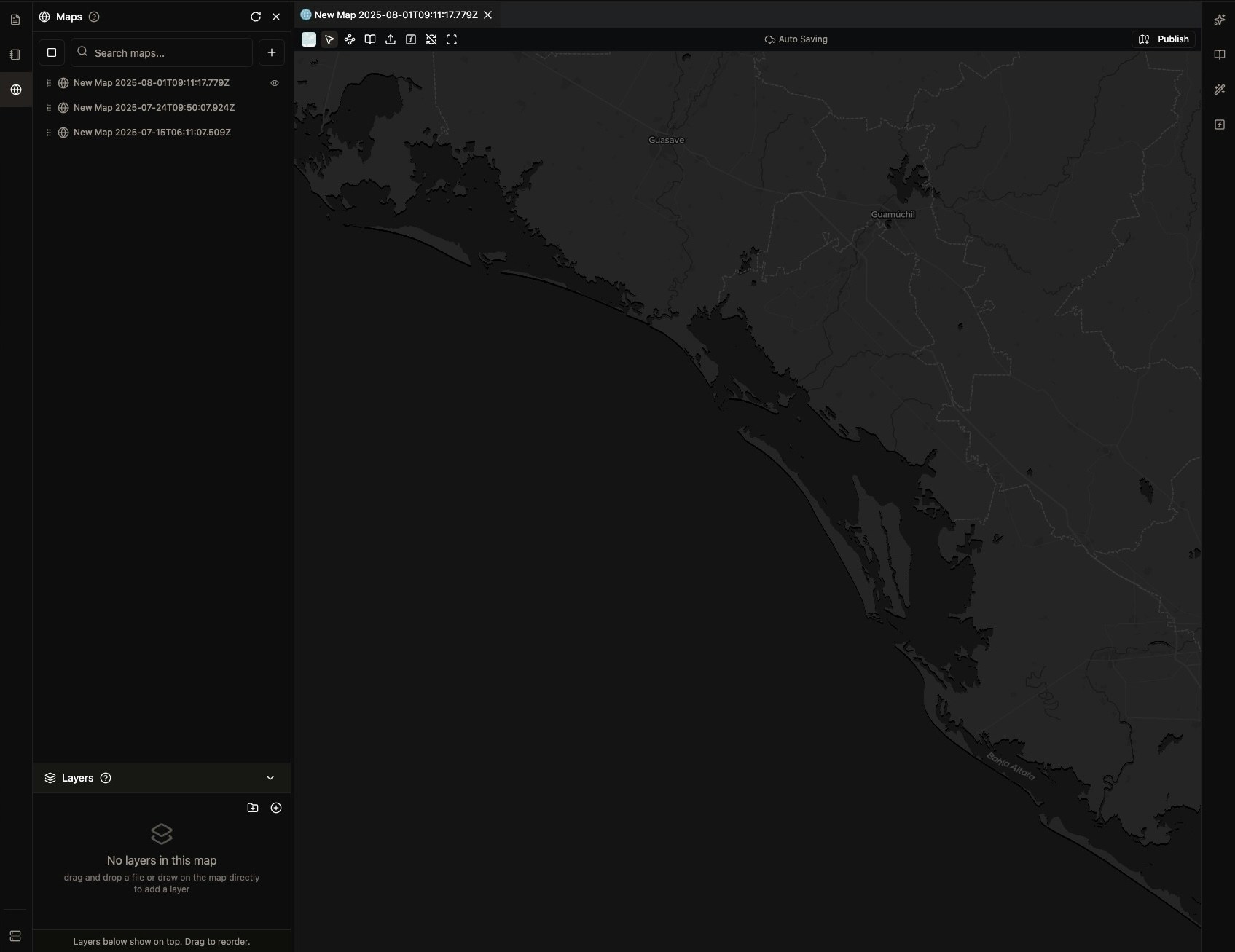
 4. **First Map**: Your first map will appear in the middle of the screen
 ## Step 2: Rename Your Map
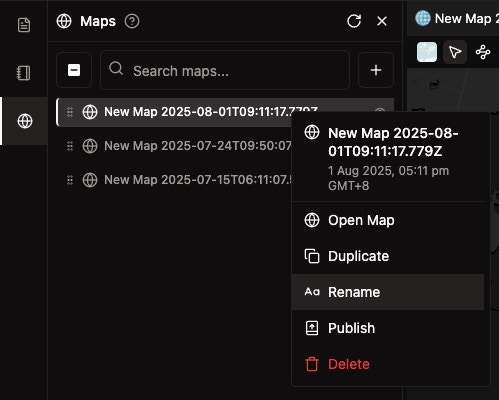
1. **Reame**: Right click on a map to open rename dialog
2. **Save**: Click "Save" to finalize
## Step 2: Rename Your Map
1. **Reame**: Right click on a map to open rename dialog
2. **Save**: Click "Save" to finalize
 ## Step 3: Choose Your Basemap
When creating a new map, it will by default use `dataviz` basemap, you can follow [Change Base Map](/guides/become-map-expert/change-base-map) to select other options.
## Tips and Best Practices
### Map Organization
* **Descriptive Names**: Use clear, descriptive names for your maps
* **Consistent Naming**: Follow a naming convention for your team
* **Cleaning**: Right click to delete temporary maps that you will no longer use
### Performance
* **Start Simple**: Begin with a basic basemap and add complexity gradually
* **Layer Limits**: Theoretically NikaMap can load large vector and raster
* **Auto Saving**: NikaMap will auto save your changes, no more worry of data loss
## Step 3: Choose Your Basemap
When creating a new map, it will by default use `dataviz` basemap, you can follow [Change Base Map](/guides/become-map-expert/change-base-map) to select other options.
## Tips and Best Practices
### Map Organization
* **Descriptive Names**: Use clear, descriptive names for your maps
* **Consistent Naming**: Follow a naming convention for your team
* **Cleaning**: Right click to delete temporary maps that you will no longer use
### Performance
* **Start Simple**: Begin with a basic basemap and add complexity gradually
* **Layer Limits**: Theoretically NikaMap can load large vector and raster
* **Auto Saving**: NikaMap will auto save your changes, no more worry of data loss