> ## Documentation Index
> Fetch the complete documentation index at: https://docs.nikaplanet.com/llms.txt
> Use this file to discover all available pages before exploring further.
# Access Job Outputs
> View job history and access the outputs of your custom geoprocessing jobs directly inside the QGIS and ArcGIS NIKA plugin.
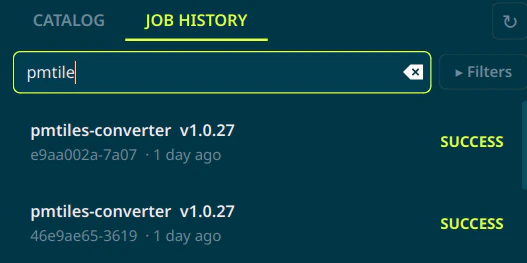
On both versions of the plugin, you can access the job history by clicking the "Job History" button in the NikaPlanet panel. The panel lets you view the history of all your jobs, both past and active.
The job history panel is searchable by worker name, version, job ID.
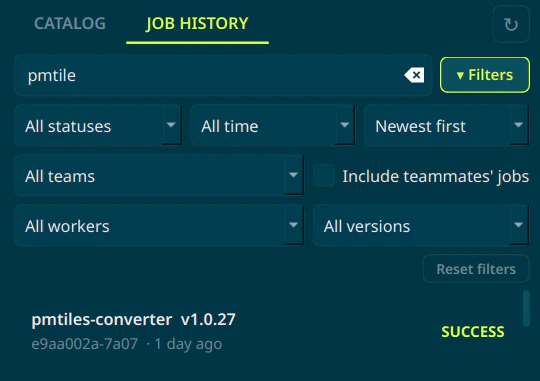
 By clicking "filters", you can fine-tune the search results to specific workers, versions, teams, or dates:
 If a job has outputs, you can click the "outputs" tab to view the outputs. The outputs window supports multi-select as well as downloading and adding the files as layers.
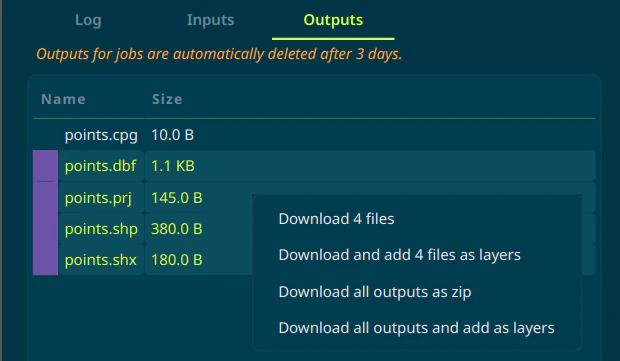 Outputs will only be available for 3 days after the job completes, so be sure to download them if you need them after that.