> ## Documentation Index
> Fetch the complete documentation index at: https://docs.nikaplanet.com/llms.txt
> Use this file to discover all available pages before exploring further.
# AI Coding in Notebook
> Learn how to use AI-powered coding features including quick edits, error resolution, and intelligent code suggestions in Nika notebooks
Learn how to leverage AI-powered features in Nika notebooks for faster coding, error resolution, and intelligent code suggestions. Use built-in AI tools to enhance your development workflow.
## Step 1: Quick AI Edit
### Built-in AI Suggestions
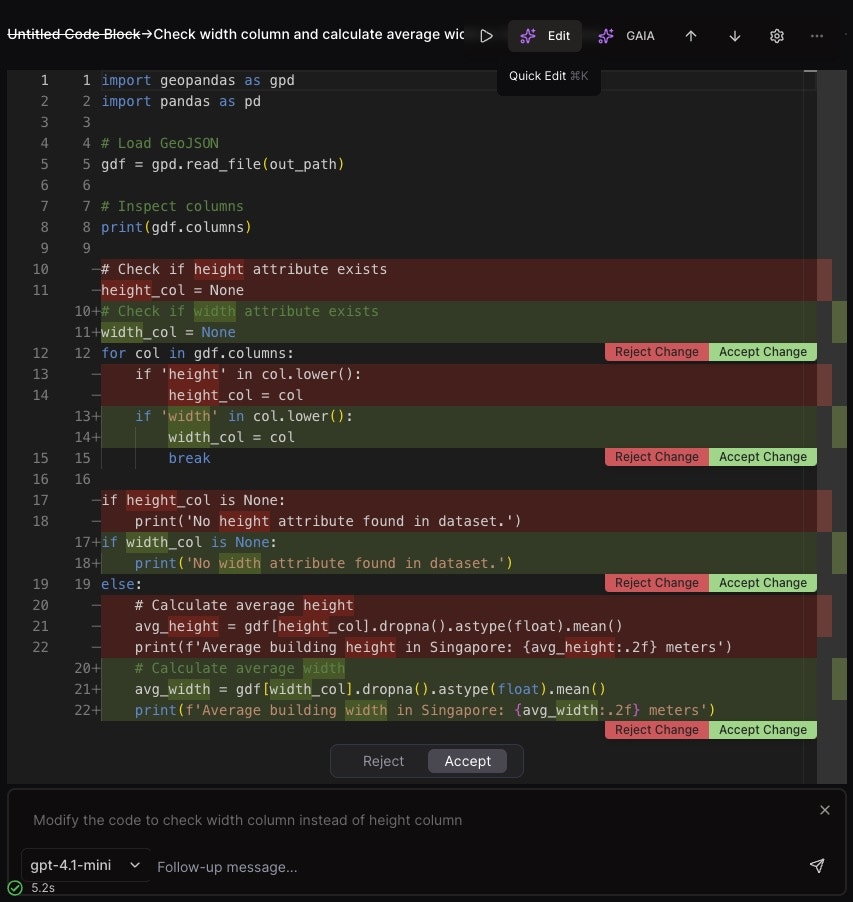
1. **Trigger AI Edit**: Press `Cmd/Ctrl + K` or click the AI edit button in the code block toolbar
2. **AI Analyzes Code**: AI reviews your code and suggests improvements
3. **Green Suggestions**: AI suggestions appear in green text
4. **Preview Execution**: Code runs with suggested changes even before accepting
### Accepting Changes
* **Line by Line**: Accept individual suggestions one at a time
* **Accept All**: Accept all AI suggestions at once
* **Undo Actions**: Use `Ctrl + Z` to undo accept/reject actions
* **Preview Mode**: See how code performs with suggestions before committing
### AI Edit Features
* **Context-Aware**: AI understands your notebook's full context
* **Smart Suggestions**: Intelligent code improvements and optimizations
* **Real-time Preview**: Test suggested changes immediately
* **Flexible Control**: Accept, reject, or modify suggestions as needed
 ## Step 2: Error Resolution with GAIA
### "Resolve in GAIA" Button
When code encounters errors:
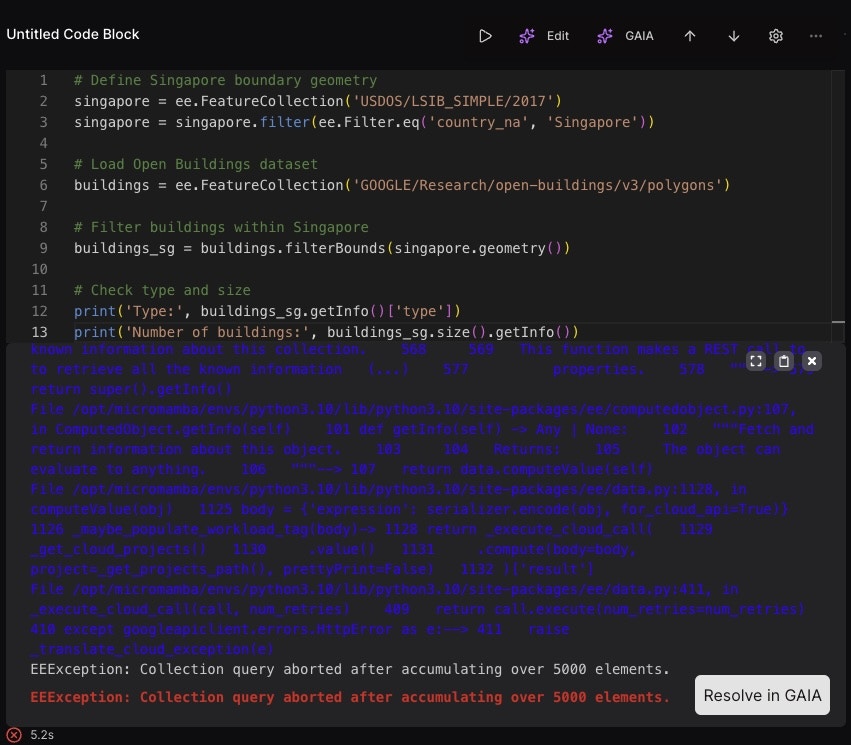
1. **Error Occurs**: Code execution fails with detailed error message
2. **Click "Resolve in GAIA"**: Click the blue button in the error output
3. **AI Agent Activation**: Nika's AI agent analyzes the entire notebook context
4. **Comprehensive Analysis**: AI looks at the bigger picture, not just the error
### GAIA's Analysis
* **Full Context**: Analyzes entire notebook, not just the error line
* **Dependency Tracking**: Understands library imports and dependencies
* **Data Flow**: Tracks how data flows through your analysis
* **Best Practices**: Suggests improvements based on coding standards
## Step 2: Error Resolution with GAIA
### "Resolve in GAIA" Button
When code encounters errors:
1. **Error Occurs**: Code execution fails with detailed error message
2. **Click "Resolve in GAIA"**: Click the blue button in the error output
3. **AI Agent Activation**: Nika's AI agent analyzes the entire notebook context
4. **Comprehensive Analysis**: AI looks at the bigger picture, not just the error
### GAIA's Analysis
* **Full Context**: Analyzes entire notebook, not just the error line
* **Dependency Tracking**: Understands library imports and dependencies
* **Data Flow**: Tracks how data flows through your analysis
* **Best Practices**: Suggests improvements based on coding standards
 ## Step 3: GAIA Chat Interface
### AI-Powered Chat
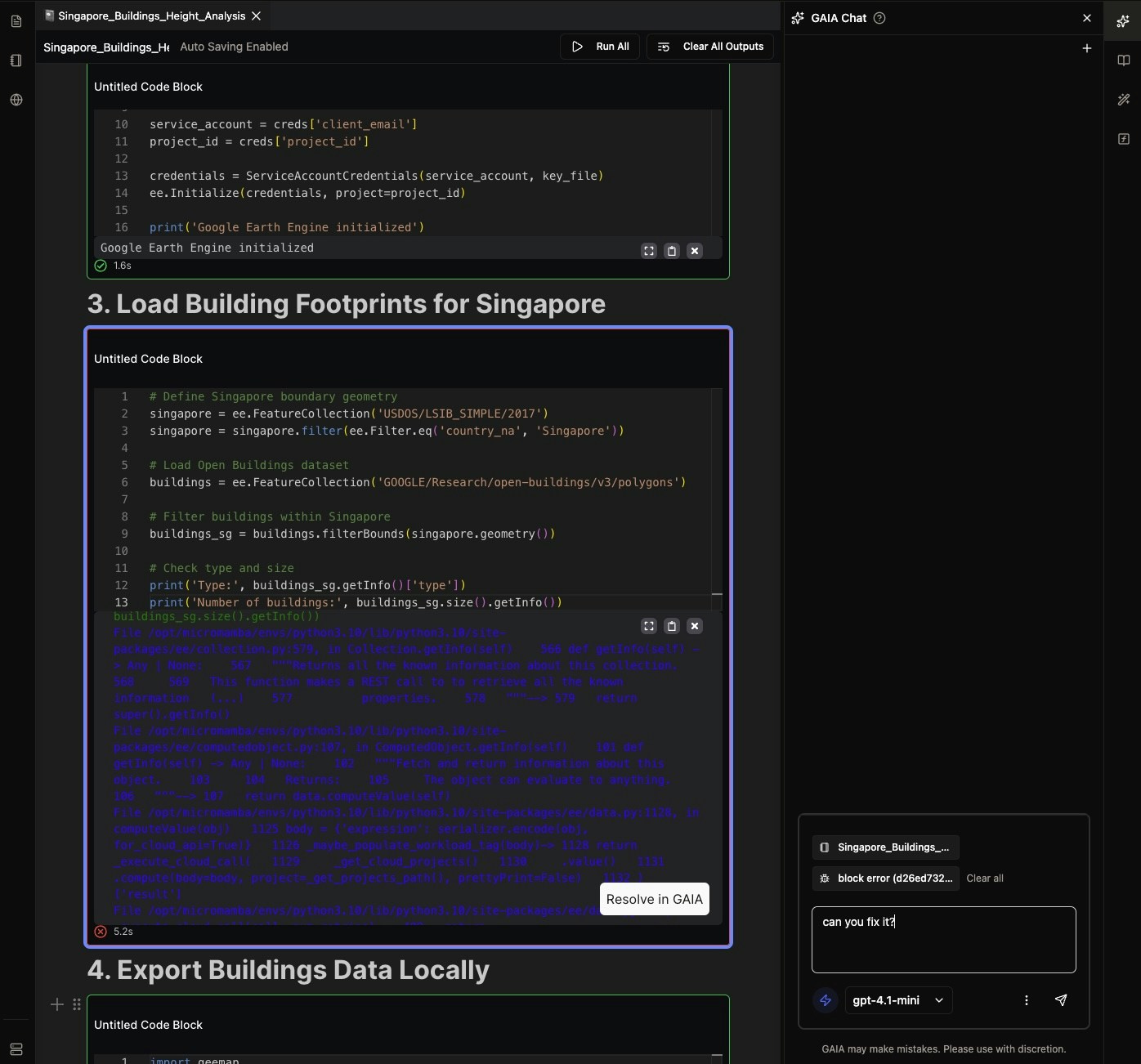
After clicking "Resolve in GAIA":
1. **Chat Panel Opens**: GAIA chat panel appears on the right side
2. **Error Context**: AI shows understanding of the error and notebook context
3. **Interactive Chat**: Ask questions and get AI assistance
4. **Streaming Responses**: See AI responses stream in real-time
### Chat Features
* **Natural Language**: Ask questions in plain English
* **Code Modifications**: AI can modify your notebook directly
* **Explanation**: Get detailed explanations of errors and solutions
* **Step-by-Step**: Receive guided solutions for complex problems
### Example Chat Interaction
```
User: "can you fix it?"
GAIA: "I see the issue. The Google Earth Engine collection query is being aborted because it's trying to retrieve too many elements at once. Let me fix this by implementing pagination..."
```
## Step 3: GAIA Chat Interface
### AI-Powered Chat
After clicking "Resolve in GAIA":
1. **Chat Panel Opens**: GAIA chat panel appears on the right side
2. **Error Context**: AI shows understanding of the error and notebook context
3. **Interactive Chat**: Ask questions and get AI assistance
4. **Streaming Responses**: See AI responses stream in real-time
### Chat Features
* **Natural Language**: Ask questions in plain English
* **Code Modifications**: AI can modify your notebook directly
* **Explanation**: Get detailed explanations of errors and solutions
* **Step-by-Step**: Receive guided solutions for complex problems
### Example Chat Interaction
```
User: "can you fix it?"
GAIA: "I see the issue. The Google Earth Engine collection query is being aborted because it's trying to retrieve too many elements at once. Let me fix this by implementing pagination..."
```
 ## Step 4: AI-Powered Code Execution
### Streaming AI Execution
* **Real-time Modifications**: AI can modify your notebook as you chat
* **Direct Integration**: Changes appear directly in your code blocks
* **Context Preservation**: AI maintains your notebook's structure and flow
* **Immediate Testing**: Modified code can be executed right away
### AI Model Selection
* **GPT-4.1-mini**: Fast and efficient AI model for quick responses
* **Context-Aware**: Model understands your specific notebook context
* **Error-Specific**: Tailored responses based on the exact error encountered
* **Learning**: AI learns from your coding patterns and preferences
## Step 5: Advanced AI Features
### Intelligent Code Suggestions
* **Auto-completion**: AI suggests code completions as you type
* **Import Optimization**: Automatically suggest and add required imports
* **Error Prevention**: Catch potential errors before they occur
* **Performance Optimization**: Suggest more efficient code patterns
### Context-Aware Assistance
* **Notebook History**: AI remembers previous code blocks and outputs
* **Data Understanding**: AI understands your data structures and types
* **Library Knowledge**: AI knows about available libraries and their usage
* **Best Practices**: Suggest improvements based on coding standards
## Next Steps
Now that you can use AI coding features:
1. **Practice AI Edit**: Try `Cmd/Ctrl + K` on your code blocks
2. **Test Error Resolution**: Use "Resolve in GAIA" when you encounter errors
3. **Explore Chat**: Ask GAIA questions about your code and data
4. **Learn Patterns**: Observe how AI suggests improvements
Happy AI-powered coding!
## Step 4: AI-Powered Code Execution
### Streaming AI Execution
* **Real-time Modifications**: AI can modify your notebook as you chat
* **Direct Integration**: Changes appear directly in your code blocks
* **Context Preservation**: AI maintains your notebook's structure and flow
* **Immediate Testing**: Modified code can be executed right away
### AI Model Selection
* **GPT-4.1-mini**: Fast and efficient AI model for quick responses
* **Context-Aware**: Model understands your specific notebook context
* **Error-Specific**: Tailored responses based on the exact error encountered
* **Learning**: AI learns from your coding patterns and preferences
## Step 5: Advanced AI Features
### Intelligent Code Suggestions
* **Auto-completion**: AI suggests code completions as you type
* **Import Optimization**: Automatically suggest and add required imports
* **Error Prevention**: Catch potential errors before they occur
* **Performance Optimization**: Suggest more efficient code patterns
### Context-Aware Assistance
* **Notebook History**: AI remembers previous code blocks and outputs
* **Data Understanding**: AI understands your data structures and types
* **Library Knowledge**: AI knows about available libraries and their usage
* **Best Practices**: Suggest improvements based on coding standards
## Next Steps
Now that you can use AI coding features:
1. **Practice AI Edit**: Try `Cmd/Ctrl + K` on your code blocks
2. **Test Error Resolution**: Use "Resolve in GAIA" when you encounter errors
3. **Explore Chat**: Ask GAIA questions about your code and data
4. **Learn Patterns**: Observe how AI suggests improvements
Happy AI-powered coding!