> ## Documentation Index
> Fetch the complete documentation index at: https://docs.nikaplanet.com/llms.txt
> Use this file to discover all available pages before exploring further.
# Run the Code in Notebook
> Learn how to run code in notebooks with hover menus, keyboard shortcuts, streaming execution, and AI-powered debugging
Learn how to run code in your NikaWorkspace notebooks with multiple execution methods, streaming output, and powerful debugging features. Code execution is streamed from the kernel, allowing you to close the workspace and return later to see results.
## Step 1: Run Individual Code Blocks
### Method 1: Hover Menu Run Button
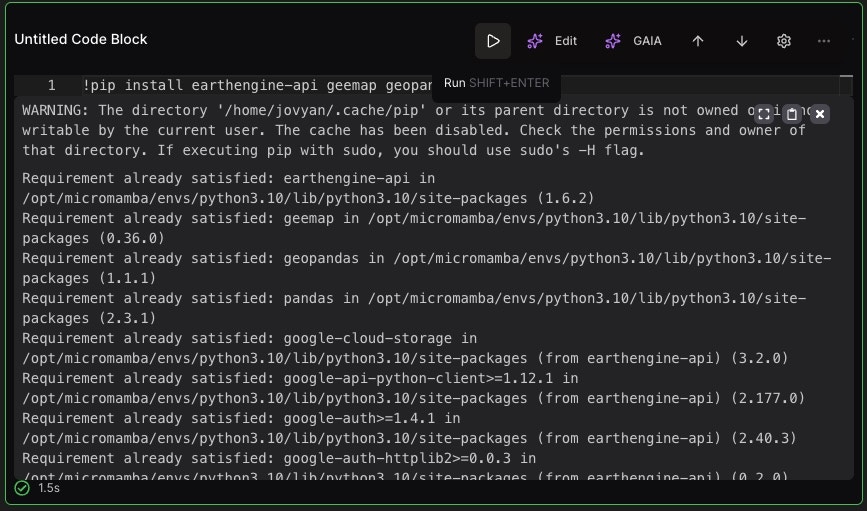
1. **Hover Over Code Block**: Hover over any code block
2. **Click Run Button**: Click the play button (▶️) that appears in the hover menu
3. **Code Executes**: Code runs and output streams in below the block
4. **Status Updates**: Green checkmark shows successful execution
### Method 2: Keyboard Shortcut
1. **Select Code Block**: Click on the code block you want to run
2. **Press Shift+Enter**: Use the keyboard shortcut to execute
3. **Code Executes**: Code runs and cursor moves to next block
4. **View Results**: See streaming output in real-time
 ## Step 2: Run All Code Blocks
### Run All Feature
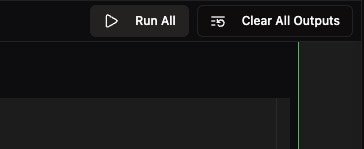
1. **Click "Run All"**: Use the "Run All" button in the top-right toolbar
2. **Sequential Execution**: All codeNo Dragging Required blocks execute in order from top to bottom
3. **Progress Tracking**: Watch as each block executes in sequence
4. **Complete Execution**: All blocks finish with results displayed
### Clear All Outputs
* **Click "Clear All Outputs"**: Remove all execution results
* **Fresh Start**: Start with clean output areas
* **Re-run**: Execute blocks again as needed
## Step 2: Run All Code Blocks
### Run All Feature
1. **Click "Run All"**: Use the "Run All" button in the top-right toolbar
2. **Sequential Execution**: All codeNo Dragging Required blocks execute in order from top to bottom
3. **Progress Tracking**: Watch as each block executes in sequence
4. **Complete Execution**: All blocks finish with results displayed
### Clear All Outputs
* **Click "Clear All Outputs"**: Remove all execution results
* **Fresh Start**: Start with clean output areas
* **Re-run**: Execute blocks again as needed
 ## Step 3: Handle Exceptions and Errors
### Exception Display
When code encounters errors:
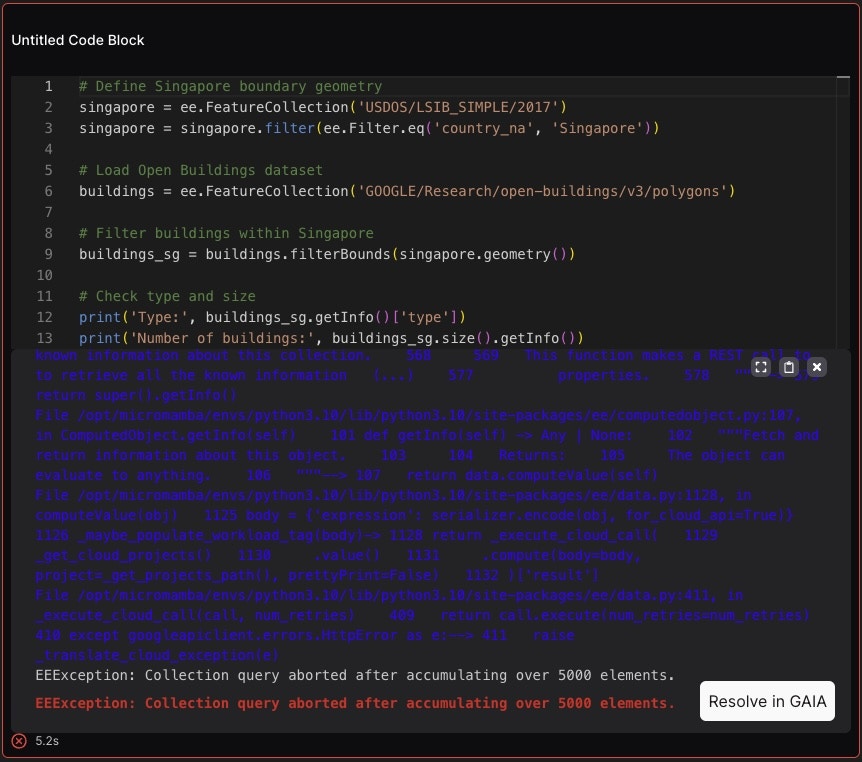
* **Detailed Error Messages**: Full exception details are displayed
* **Traceback Information**: Complete stack trace for debugging
* **Error Context**: Shows exactly where the error occurred
* **Helpful Details**: Error messages provide debugging guidance
### AI-Powered Debugging
* **"Resolve in GAIA" Button**: Click to get AI assistance with errors
* **Smart Suggestions**: AI provides code fixes and explanations
* **Context-Aware Help**: AI understands your notebook context
* **Learn More**: See [AI Coding in Notebook](/guides/data-analysis/ai-coding-in-notebook) for detailed AI features
## Step 3: Handle Exceptions and Errors
### Exception Display
When code encounters errors:
* **Detailed Error Messages**: Full exception details are displayed
* **Traceback Information**: Complete stack trace for debugging
* **Error Context**: Shows exactly where the error occurred
* **Helpful Details**: Error messages provide debugging guidance
### AI-Powered Debugging
* **"Resolve in GAIA" Button**: Click to get AI assistance with errors
* **Smart Suggestions**: AI provides code fixes and explanations
* **Context-Aware Help**: AI understands your notebook context
* **Learn More**: See [AI Coding in Notebook](/guides/data-analysis/ai-coding-in-notebook) for detailed AI features
 ## Step 4: Code Quality Features
### Real-Time Code Linting
* **Syntax Checking**: Python syntax is checked after each line change
* **Error Highlighting**: Syntax errors are highlighted immediately
* **Best Practices**: Suggestions for code improvements
* **Instant Feedback**: Get feedback as you type
### Autocompletion (Coming Soon)
* **Tab Key Trigger**: Press Tab to trigger code completion
* **Context-Aware**: Suggestions based on notebook context
* **Smart Predictions**: AI-powered code completion
* **Variable Recognition**: Understands variables in your notebook
## Step 5: Reorder Code Blocks
### Easy Block Reordering
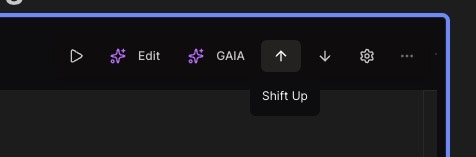
1. **Use Arrow Buttons**: Click up/down arrow buttons in block toolbar
2. **Shift Blocks**: Move blocks up or down without dragging
3. **Visual Feedback**: See blocks move in real-time
4. **Maintain Order**: Keep logical flow of your analysis
### Block Management
* **Shift Up**: Move block to previous position
* **Shift Down**: Move block to next position
* **Dragging**: Dragging block for reordering in a longer range
* **Preserve Output**: Block outputs move with the code
## Step 4: Code Quality Features
### Real-Time Code Linting
* **Syntax Checking**: Python syntax is checked after each line change
* **Error Highlighting**: Syntax errors are highlighted immediately
* **Best Practices**: Suggestions for code improvements
* **Instant Feedback**: Get feedback as you type
### Autocompletion (Coming Soon)
* **Tab Key Trigger**: Press Tab to trigger code completion
* **Context-Aware**: Suggestions based on notebook context
* **Smart Predictions**: AI-powered code completion
* **Variable Recognition**: Understands variables in your notebook
## Step 5: Reorder Code Blocks
### Easy Block Reordering
1. **Use Arrow Buttons**: Click up/down arrow buttons in block toolbar
2. **Shift Blocks**: Move blocks up or down without dragging
3. **Visual Feedback**: See blocks move in real-time
4. **Maintain Order**: Keep logical flow of your analysis
### Block Management
* **Shift Up**: Move block to previous position
* **Shift Down**: Move block to next position
* **Dragging**: Dragging block for reordering in a longer range
* **Preserve Output**: Block outputs move with the code
 ## Step 6: Streaming Execution
### Background Execution
* **Streaming Output**: Results stream in real-time from kernel
* **Leave and Return**: Close workspace, return hours later
* **Persistent Execution**: Long-running code continues in background
* **Output Preservation**: All results are saved and displayed
### Long-Running Tasks
```python theme={null}
# Example: Long-running analysis
import time
import pandas as pd
# Load large dataset
print("Loading large dataset...")
data = pd.read_parquet('/workspace/data/massive_dataset.parquet')
# Process data in chunks
print("Processing data...")
for i in range(100):
chunk = data[i*1000:(i+1)*1000]
# Complex processing here
time.sleep(1) # Simulate processing time
print(f"Processed chunk {i+1}/100")
print("Analysis complete!")
```
### Benefits of Streaming
* **No Time Pressure**: Start long tasks and walk away
* **Resource Efficiency**: Use compute resources effectively
* **Progress Monitoring**: Check progress when you return
* **Reliable Execution**: No interruption from browser closure
## Step 7: Code Execution Examples
### Basic Code Execution
```python theme={null}
# Simple data analysis
import pandas as pd
import numpy as np
# Load data
data = pd.read_csv('/workspace/data/sample.csv')
print(f"Dataset shape: {data.shape}")
# Basic statistics
print(f"Mean: {data['value'].mean()}")
print(f"Standard deviation: {data['value'].std()}")
```
### Library Installation
```python theme={null}
# Install required libraries
!pip install earthengine-api geemap geopandas
# Libraries are installed and ready to use
import ee
import geemap
import geopandas as gpd
```
### Error Handling Example
```python theme={null}
try:
# Attempt to load data
data = pd.read_csv('/workspace/data/missing_file.csv')
except FileNotFoundError as e:
print(f"Error: {e}")
print("Please check if the file exists in the workspace")
```
## Best Practices
### Code Organization
* **Logical Flow**: Arrange blocks in logical order
* **Clear Comments**: Add comments to explain your code
* **Modular Code**: Break complex tasks into smaller blocks
* **Error Handling**: Use try-catch blocks for robust code
### Execution Strategy
* **Test Small**: Run small code blocks first
* **Incremental Development**: Build analysis step by step
* **Save Results**: Save intermediate results for long tasks
* **Monitor Resources**: Keep track of memory and CPU usage
### Performance Tips
* **Use Streaming**: Leverage background execution for long tasks
* **Efficient Code**: Write optimized, vectorized code
* **Batch Processing**: Process data in manageable chunks
* **Resource Management**: Clean up large variables when done
## Troubleshooting
### Common Issues
* **Code Not Running**: Check if VM is started and ready
* **Syntax Errors**: Use the real-time linting to catch errors
* **Long Execution**: Use streaming execution for background tasks
* **Memory Issues**: Clear outputs or restart VM if needed
### Solutions
* **Restart VM**: Stop and restart if VM becomes unresponsive
* **Clear Outputs**: Use "Clear All Outputs" to free memory
* **AI Debugging**: Use GAIA for help with complex errors
* **Contact Support**: Get help for persistent issues
## Next Steps
Now that you can run code effectively:
1. **AI Assistance**: Learn about [AI Coding in Notebook](/guides/data-analysis/ai-coding-in-notebook) for debugging
2. **Install Libraries**: Check [Supported Python Libraries](/guides/data-analysis/supported-python-libraries)
3. **Start Machine**: Learn about [Starting Your Machine](/guides/data-analysis/start-machine)
4. **Publish Results**: [Publish Your Notebook](/guides/data-analysis/publish-notebook) to share your work
Happy coding!
## Step 6: Streaming Execution
### Background Execution
* **Streaming Output**: Results stream in real-time from kernel
* **Leave and Return**: Close workspace, return hours later
* **Persistent Execution**: Long-running code continues in background
* **Output Preservation**: All results are saved and displayed
### Long-Running Tasks
```python theme={null}
# Example: Long-running analysis
import time
import pandas as pd
# Load large dataset
print("Loading large dataset...")
data = pd.read_parquet('/workspace/data/massive_dataset.parquet')
# Process data in chunks
print("Processing data...")
for i in range(100):
chunk = data[i*1000:(i+1)*1000]
# Complex processing here
time.sleep(1) # Simulate processing time
print(f"Processed chunk {i+1}/100")
print("Analysis complete!")
```
### Benefits of Streaming
* **No Time Pressure**: Start long tasks and walk away
* **Resource Efficiency**: Use compute resources effectively
* **Progress Monitoring**: Check progress when you return
* **Reliable Execution**: No interruption from browser closure
## Step 7: Code Execution Examples
### Basic Code Execution
```python theme={null}
# Simple data analysis
import pandas as pd
import numpy as np
# Load data
data = pd.read_csv('/workspace/data/sample.csv')
print(f"Dataset shape: {data.shape}")
# Basic statistics
print(f"Mean: {data['value'].mean()}")
print(f"Standard deviation: {data['value'].std()}")
```
### Library Installation
```python theme={null}
# Install required libraries
!pip install earthengine-api geemap geopandas
# Libraries are installed and ready to use
import ee
import geemap
import geopandas as gpd
```
### Error Handling Example
```python theme={null}
try:
# Attempt to load data
data = pd.read_csv('/workspace/data/missing_file.csv')
except FileNotFoundError as e:
print(f"Error: {e}")
print("Please check if the file exists in the workspace")
```
## Best Practices
### Code Organization
* **Logical Flow**: Arrange blocks in logical order
* **Clear Comments**: Add comments to explain your code
* **Modular Code**: Break complex tasks into smaller blocks
* **Error Handling**: Use try-catch blocks for robust code
### Execution Strategy
* **Test Small**: Run small code blocks first
* **Incremental Development**: Build analysis step by step
* **Save Results**: Save intermediate results for long tasks
* **Monitor Resources**: Keep track of memory and CPU usage
### Performance Tips
* **Use Streaming**: Leverage background execution for long tasks
* **Efficient Code**: Write optimized, vectorized code
* **Batch Processing**: Process data in manageable chunks
* **Resource Management**: Clean up large variables when done
## Troubleshooting
### Common Issues
* **Code Not Running**: Check if VM is started and ready
* **Syntax Errors**: Use the real-time linting to catch errors
* **Long Execution**: Use streaming execution for background tasks
* **Memory Issues**: Clear outputs or restart VM if needed
### Solutions
* **Restart VM**: Stop and restart if VM becomes unresponsive
* **Clear Outputs**: Use "Clear All Outputs" to free memory
* **AI Debugging**: Use GAIA for help with complex errors
* **Contact Support**: Get help for persistent issues
## Next Steps
Now that you can run code effectively:
1. **AI Assistance**: Learn about [AI Coding in Notebook](/guides/data-analysis/ai-coding-in-notebook) for debugging
2. **Install Libraries**: Check [Supported Python Libraries](/guides/data-analysis/supported-python-libraries)
3. **Start Machine**: Learn about [Starting Your Machine](/guides/data-analysis/start-machine)
4. **Publish Results**: [Publish Your Notebook](/guides/data-analysis/publish-notebook) to share your work
Happy coding!