> ## Documentation Index
> Fetch the complete documentation index at: https://docs.nikaplanet.com/llms.txt
> Use this file to discover all available pages before exploring further.
# Create New Flow
> Learn how to create a new data conversion workflow and add nodes
## Opening the Workflow Panel
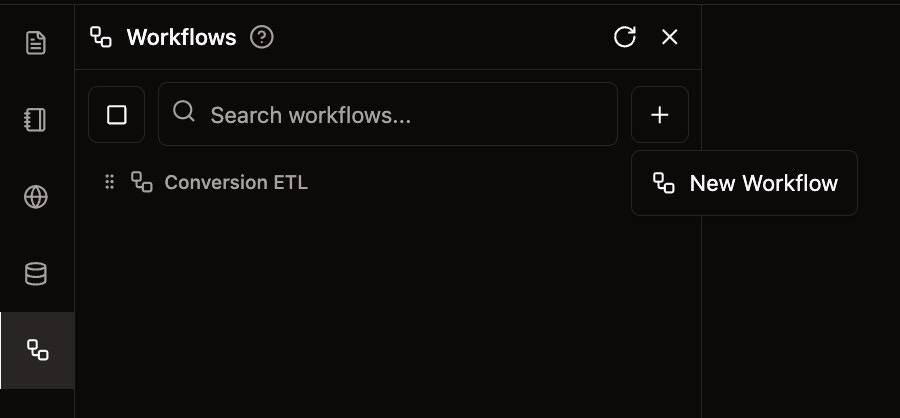
To create a new data conversion workflow:
1. Navigate to the **Workflows** section in the left panel
2. Click the **+** button next to the search bar, or
3. Click the **New Workflow** button on the right side of the main content area
 ## Adding Nodes to Your Workflow
Once you've created a new workflow, you can add different types of nodes:
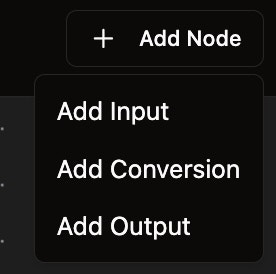
1. Click the **Add Node** button at the top of the workflow canvas
2. Select from the available node types:
* **Add Input** - For specifying data sources
* **Add Conversion** - For data format transformations
* **Add Output** - For defining output destinations
## Adding Nodes to Your Workflow
Once you've created a new workflow, you can add different types of nodes:
1. Click the **Add Node** button at the top of the workflow canvas
2. Select from the available node types:
* **Add Input** - For specifying data sources
* **Add Conversion** - For data format transformations
* **Add Output** - For defining output destinations
 ## Connecting Nodes
After adding nodes to your workflow:
1. Click and drag from the output port (right side) of one node
2. Connect it to the input port (left side) of another node
3. This creates a data flow connection between the nodes
The workflow canvas will show your connected nodes with visual connections indicating the data flow path.
## Connecting Nodes
After adding nodes to your workflow:
1. Click and drag from the output port (right side) of one node
2. Connect it to the input port (left side) of another node
3. This creates a data flow connection between the nodes
The workflow canvas will show your connected nodes with visual connections indicating the data flow path.