> ## Documentation Index
> Fetch the complete documentation index at: https://docs.nikaplanet.com/llms.txt
> Use this file to discover all available pages before exploring further.
# Edit Conversion Flow
> Configure input, conversion, and output nodes for your data pipeline
## Configuring Input Nodes
### Setting Input Sources
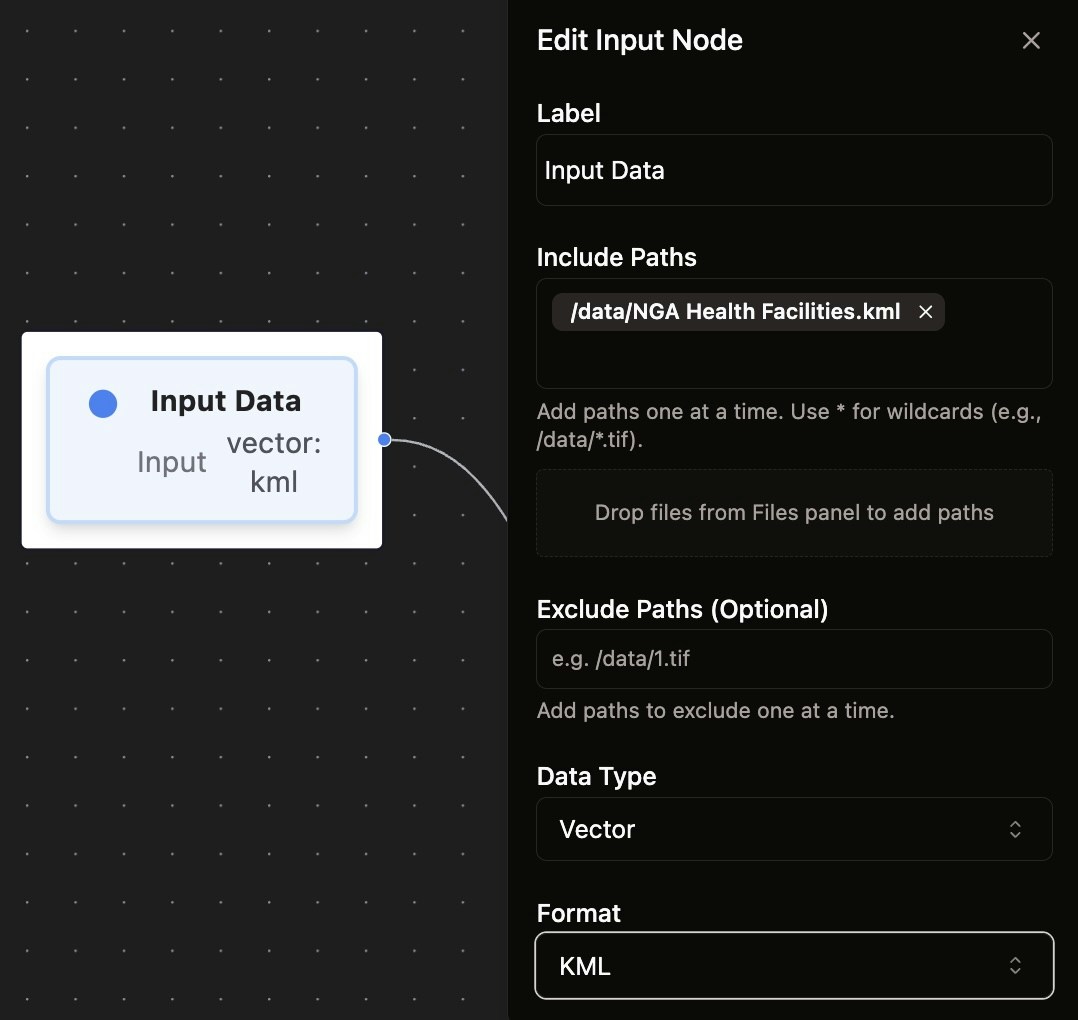
1. Click on an **Input Data** node to open its configuration panel
2. In the **Include Paths** section, add your data source paths:
* All paths **must start with `/data/`** prefix
* Use wildcards (e.g., `/data/*.tif`) to include multiple files
* Add paths one at a time
* Double click an existing path to modify the text
 ### Using Exclude Paths
To refine your input scope:
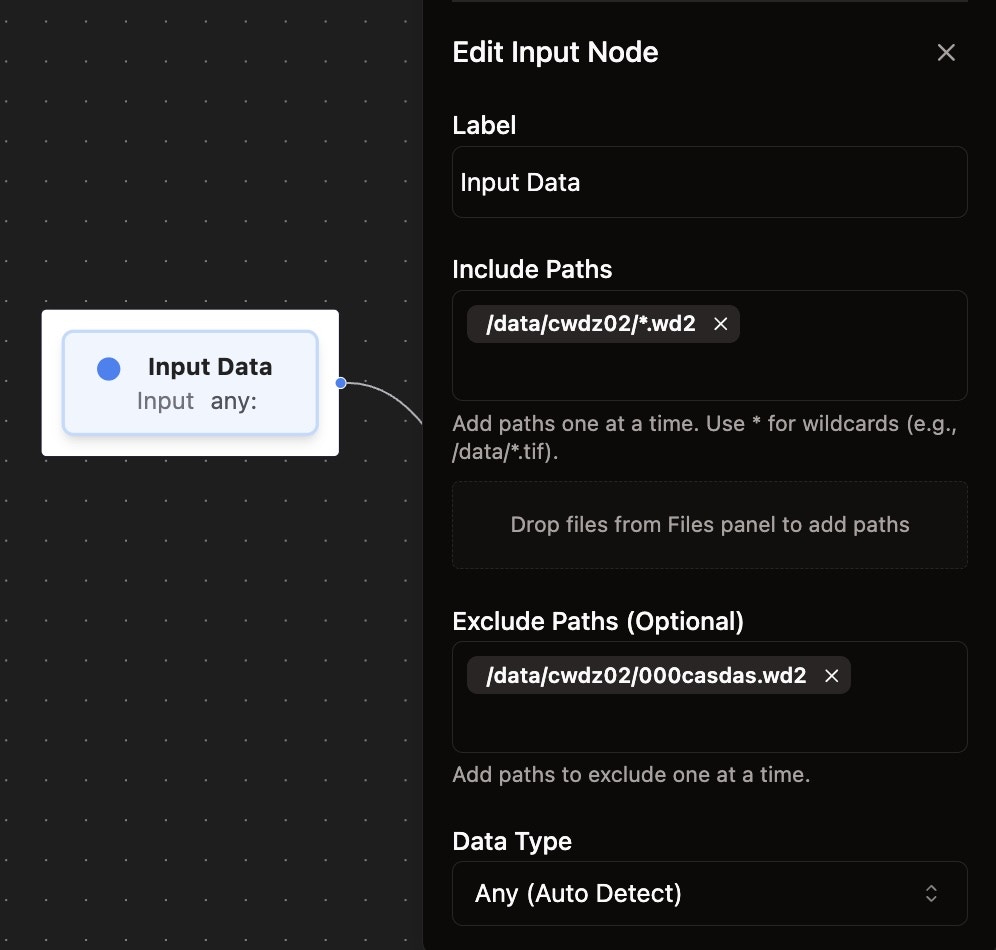
1. In the **Exclude Paths (Optional)** section, specify files to exclude
2. This is useful when using wildcards - you can include a broad pattern and then exclude specific unwanted files
3. Example: Include `/data/cwdz02/*.wd2` but exclude `/data/cwdz02/000casdas.wd2`
### Using Exclude Paths
To refine your input scope:
1. In the **Exclude Paths (Optional)** section, specify files to exclude
2. This is useful when using wildcards - you can include a broad pattern and then exclude specific unwanted files
3. Example: Include `/data/cwdz02/*.wd2` but exclude `/data/cwdz02/000casdas.wd2`
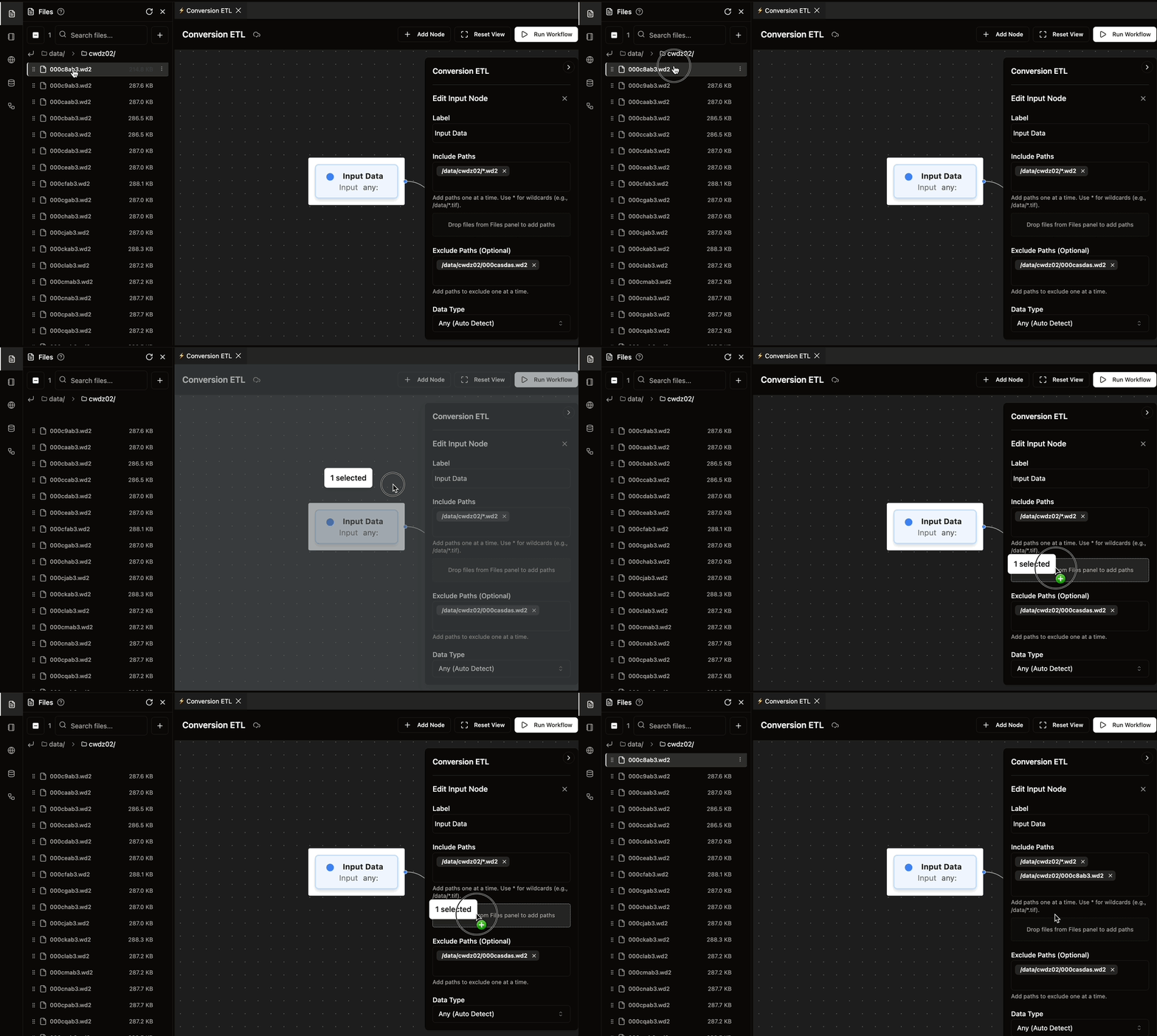
 ### \[Advanced] Drag and Drop from Files Panel
For faster path entry:
1. Open the **Files** panel on the left
2. Select multiple files from the data lake filesystem
3. Drag and drop them directly into the input node panel's dropzone
4. This automatically adds all selected file paths that are valid for currently selected input data format
### \[Advanced] Drag and Drop from Files Panel
For faster path entry:
1. Open the **Files** panel on the left
2. Select multiple files from the data lake filesystem
3. Drag and drop them directly into the input node panel's dropzone
4. This automatically adds all selected file paths that are valid for currently selected input data format
 ## Configuring Conversion Nodes
### Setting Input and Output Formats
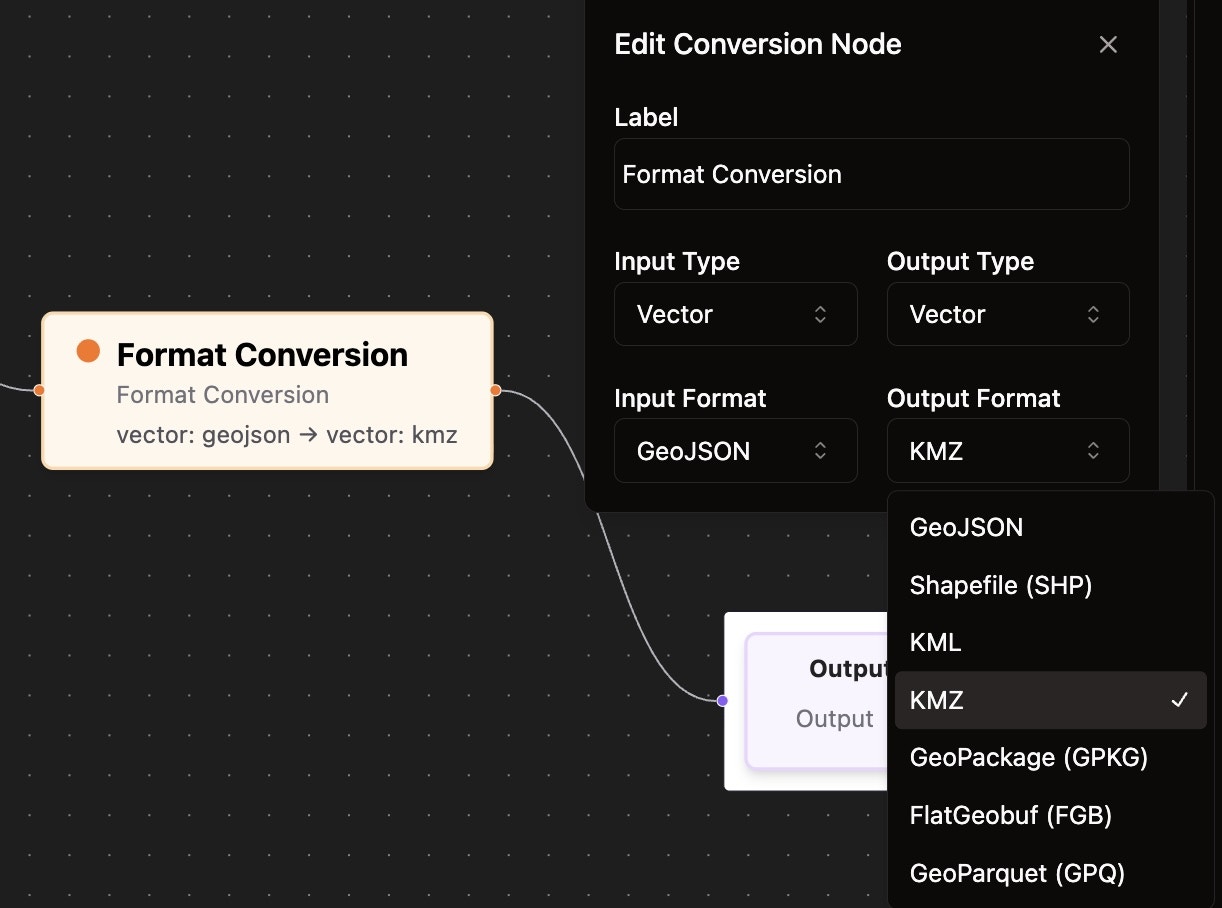
1. Click on a **Format Conversion** node
2. Configure the conversion parameters:
* **Input Type** - Select the data type (Vector, Raster, etc.)
* **Input Format** - Choose the source format (GeoJSON, KML, etc.)
* **Output Type** - Select the target data type
* **Output Format** - Choose the destination format (KMZ, Shapefile, etc.)
3. Check out [NikaFlow page](/nika-planet/nika-flow#geospatial-format-support) for latest supported input and output data type/formats
## Configuring Conversion Nodes
### Setting Input and Output Formats
1. Click on a **Format Conversion** node
2. Configure the conversion parameters:
* **Input Type** - Select the data type (Vector, Raster, etc.)
* **Input Format** - Choose the source format (GeoJSON, KML, etc.)
* **Output Type** - Select the target data type
* **Output Format** - Choose the destination format (KMZ, Shapefile, etc.)
3. Check out [NikaFlow page](/nika-planet/nika-flow#geospatial-format-support) for latest supported input and output data type/formats
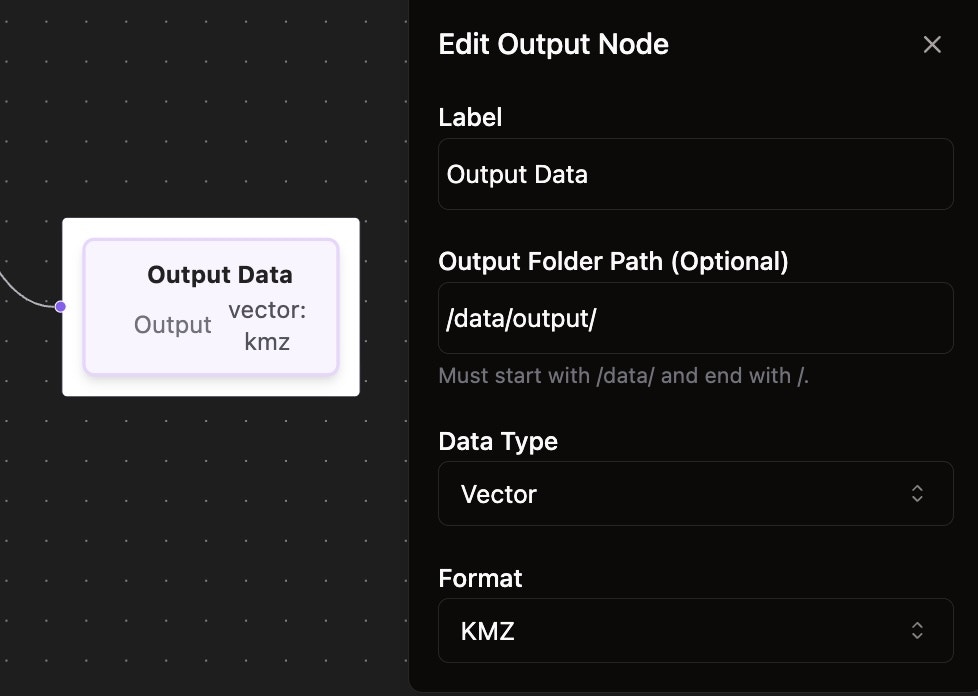
 ## Configuring Output Nodes
### Setting Output Destination
1. Click on an **Output Data** node
2. The **Data Type** and **Format** will automatically sync with the connected conversion node
3. Optionally set an **Output Folder Path**:
* Must start with `/data/` and end with `/`
* If left empty, outputs will be saved in the same folder as each source file
## Configuring Output Nodes
### Setting Output Destination
1. Click on an **Output Data** node
2. The **Data Type** and **Format** will automatically sync with the connected conversion node
3. Optionally set an **Output Folder Path**:
* Must start with `/data/` and end with `/`
* If left empty, outputs will be saved in the same folder as each source file