> ## Documentation Index
> Fetch the complete documentation index at: https://docs.nikaplanet.com/llms.txt
> Use this file to discover all available pages before exploring further.
# Execute and Verify Pipeline
> Run your data conversion workflow and monitor execution status
## Running Your Workflow
### Starting the Workflow
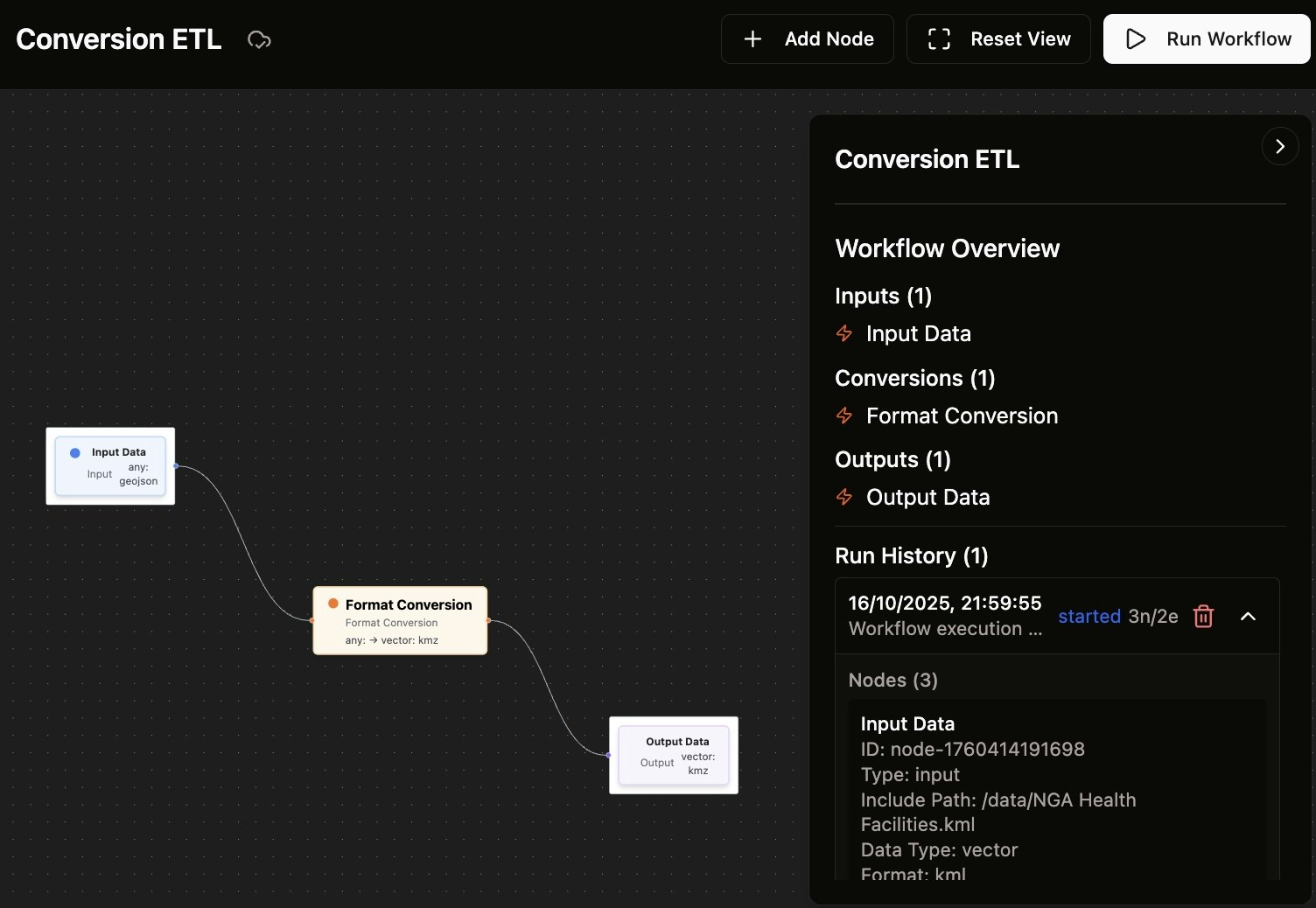
1. Once your workflow is configured with input, conversion, and output nodes, click the **Run Workflow** button in the top-right corner
2. The system will begin processing your data according to the workflow configuration
 ## Monitoring Execution
### Run History
After starting the workflow:
1. Check the **Run History** section in the workflow overview panel
2. You'll see entries showing:
* Execution start time and date
* Workflow status (started, completed, failed)
* Node and edge count (e.g., "3n/2e" for 3 nodes and 2 edges)
### Real-time Updates
* The UI updates progressively every 10 seconds during execution
* Monitor the status in the Run History section
* Watch for any error messages or warnings
## Handling Errors and Warnings
### Error Detection
If there are issues with your workflow configuration:
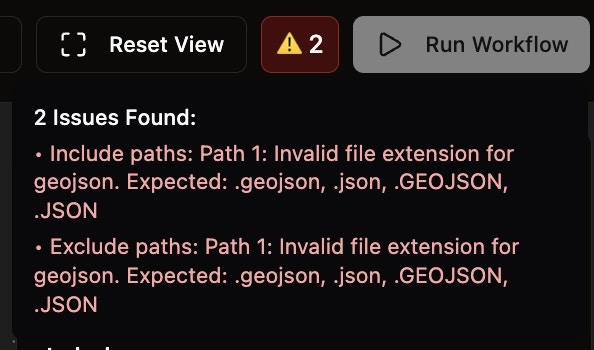
1. The system will display a warning panel showing the number of issues found
2. Each issue will be clearly explained with specific details
3. Common issues include:
* Invalid file extensions for specified formats
* Missing required configuration fields
* Invalid file paths
## Monitoring Execution
### Run History
After starting the workflow:
1. Check the **Run History** section in the workflow overview panel
2. You'll see entries showing:
* Execution start time and date
* Workflow status (started, completed, failed)
* Node and edge count (e.g., "3n/2e" for 3 nodes and 2 edges)
### Real-time Updates
* The UI updates progressively every 10 seconds during execution
* Monitor the status in the Run History section
* Watch for any error messages or warnings
## Handling Errors and Warnings
### Error Detection
If there are issues with your workflow configuration:
1. The system will display a warning panel showing the number of issues found
2. Each issue will be clearly explained with specific details
3. Common issues include:
* Invalid file extensions for specified formats
* Missing required configuration fields
* Invalid file paths
 ### Fixing Issues
1. Review the error messages carefully
2. Check that file extensions match the expected format (e.g., `.geojson` for GeoJSON files)
3. Verify that all required fields are properly configured
4. Make necessary corrections and re-run the workflow
## Workflow Overview
The workflow overview panel provides a summary of your pipeline:
* **Inputs** - Lists all input nodes and their configurations
* **Conversions** - Shows conversion nodes and their transformations
* **Outputs** - Displays output nodes and their destinations
This overview helps you verify that your workflow is properly configured before execution.
### Fixing Issues
1. Review the error messages carefully
2. Check that file extensions match the expected format (e.g., `.geojson` for GeoJSON files)
3. Verify that all required fields are properly configured
4. Make necessary corrections and re-run the workflow
## Workflow Overview
The workflow overview panel provides a summary of your pipeline:
* **Inputs** - Lists all input nodes and their configurations
* **Conversions** - Shows conversion nodes and their transformations
* **Outputs** - Displays output nodes and their destinations
This overview helps you verify that your workflow is properly configured before execution.