> ## Documentation Index
> Fetch the complete documentation index at: https://docs.nikaplanet.com/llms.txt
> Use this file to discover all available pages before exploring further.
# Create Managed DuckDB
> Set up a new managed DuckDB instance for spatial SQL queries
Create a new DuckDB instance managed by Nika for high-performance spatial data analysis.
## Step 1: Access Database Management
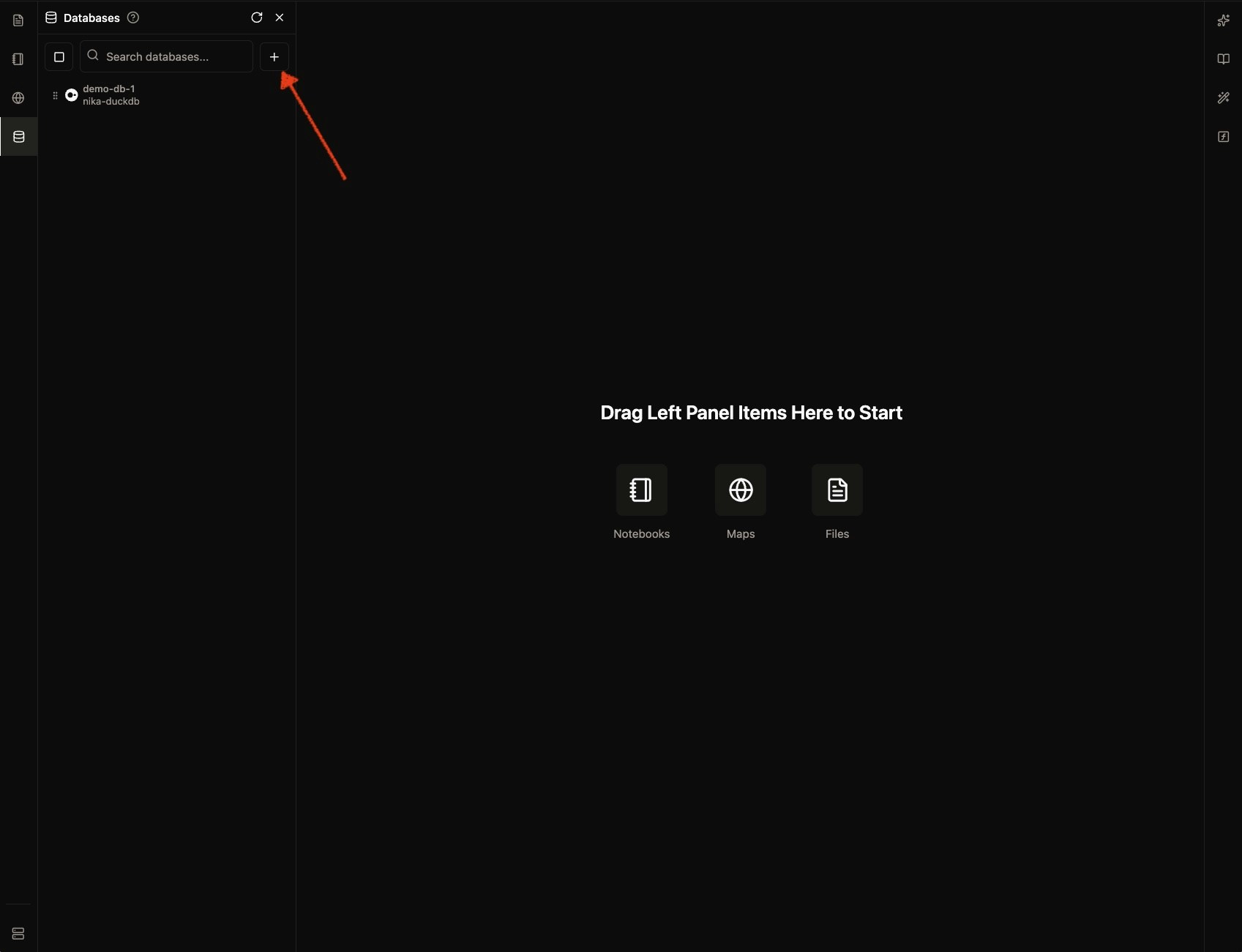
1. Navigate to **Database Management** in your NikaWorkspace
2. Click **"Create New Database"**
3. Select **"Managed DuckDB"** from the database types
 ## Step 2: Configure Database
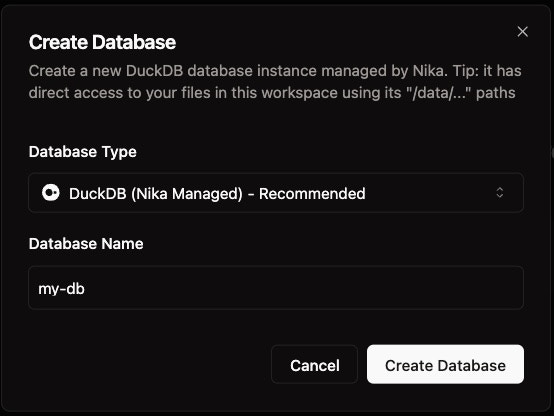
1. Enter a **database name** (e.g., "spatial\_analysis")
2. Choose **storage location** (Nika cloud or local)
3. Enable **spatial extensions** for geospatial functions
4. Click **"Create Database"**
## Step 2: Configure Database
1. Enter a **database name** (e.g., "spatial\_analysis")
2. Choose **storage location** (Nika cloud or local)
3. Enable **spatial extensions** for geospatial functions
4. Click **"Create Database"**
 ## Step 3: Verify Creation
Your new managed DuckDB instance is ready for spatial SQL queries with built-in geospatial functions.
Managed DuckDB instances include spatial extensions by default and support direct file querying from your workspace.
## Step 3: Verify Creation
Your new managed DuckDB instance is ready for spatial SQL queries with built-in geospatial functions.
Managed DuckDB instances include spatial extensions by default and support direct file querying from your workspace.