> ## Documentation Index
> Fetch the complete documentation index at: https://docs.nikaplanet.com/llms.txt
> Use this file to discover all available pages before exploring further.
# Import and Export Classes/Annotations
> Learn how to import and export annotation data in various formats
Learn how to import existing classes/annotations and export your completed labeling work in industry-standard formats.
## Supported Formats
Nika Labeler supports various annotation formats for import and export:
* **COCO 1.0 JSON** (Currently supported)
* YOLO format (To be confirm)
* Pascal VOC XML (To be confirm)
* LabelMe JSON (To be confirm)
* Custom JSON formats (To be confirm)
## Step 1: Import Annotations
To import existing annotations into your labeling job, use the import dropzone.
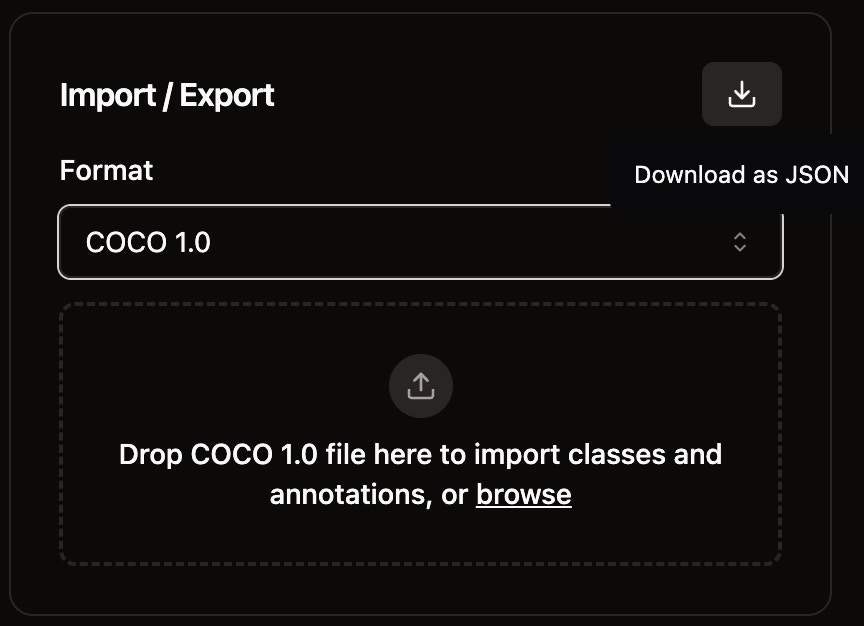 You can import annotations by:
* **Click the dropzone**: Click to open a file browser and select your annotation file
* **Drag and drop**: Drop a file from your desktop directly to the dropzone
## Step 2: Resolve Import Conflicts
Once the file is validated successfully, a dialog will appear for resolving conflicts before the import.
You can import annotations by:
* **Click the dropzone**: Click to open a file browser and select your annotation file
* **Drag and drop**: Drop a file from your desktop directly to the dropzone
## Step 2: Resolve Import Conflicts
Once the file is validated successfully, a dialog will appear for resolving conflicts before the import.
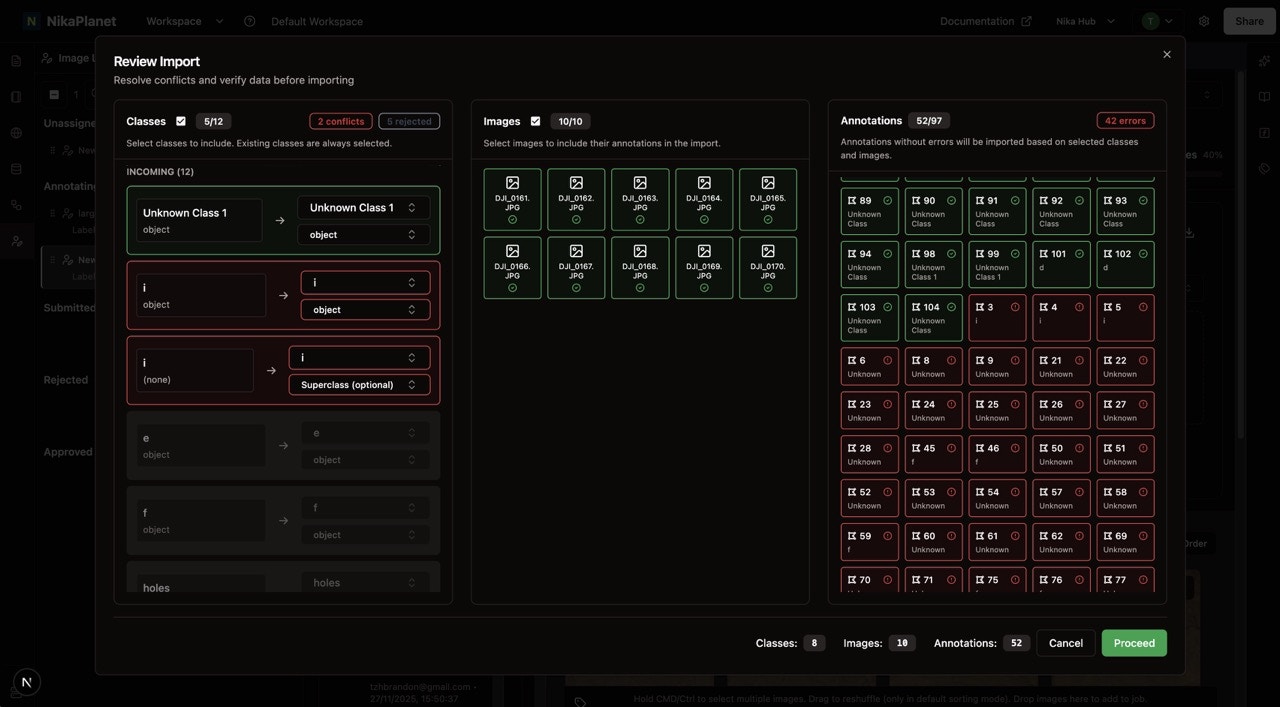 In the conflict resolution dialog, you can:
* **Merge conflicting classes**: Combine classes with similar names
* **Rename classes**: Adjust class names to match your existing schema
* **Select classes**: Click on classes to choose whether to include or ignore them
* **Select images**: Click on images to choose whether to include or ignore them
After reviewing and resolving conflicts, click the **"Proceed"** button to finalize the import.
## Step 3: Export Annotations
Once you have completed annotating images in this job, you can export the existing job via the download button.
In the conflict resolution dialog, you can:
* **Merge conflicting classes**: Combine classes with similar names
* **Rename classes**: Adjust class names to match your existing schema
* **Select classes**: Click on classes to choose whether to include or ignore them
* **Select images**: Click on images to choose whether to include or ignore them
After reviewing and resolving conflicts, click the **"Proceed"** button to finalize the import.
## Step 3: Export Annotations
Once you have completed annotating images in this job, you can export the existing job via the download button.
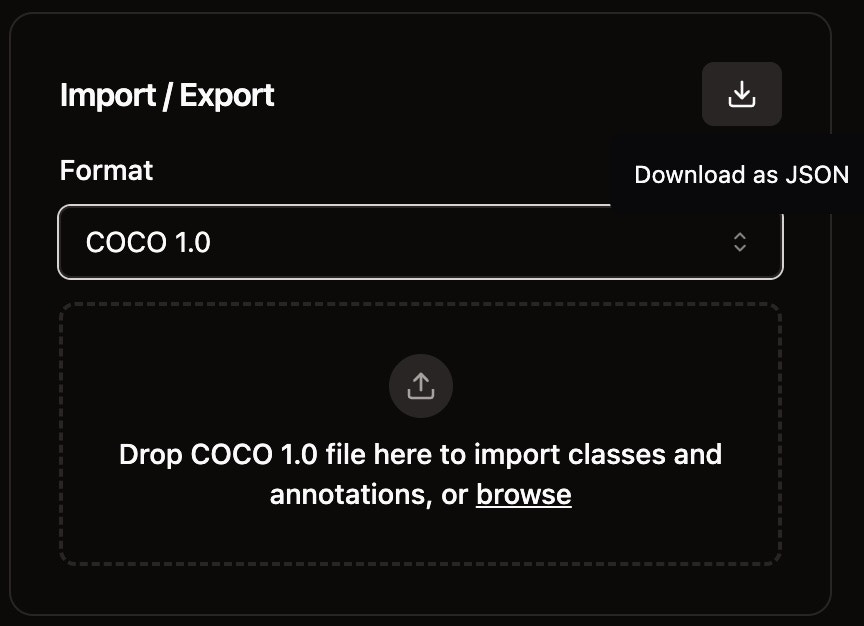 Click the download button in the top right to export your annotations in the selected format.
Happy labeling!
Click the download button in the top right to export your annotations in the selected format.
Happy labeling!