> ## Documentation Index
> Fetch the complete documentation index at: https://docs.nikaplanet.com/llms.txt
> Use this file to discover all available pages before exploring further.
# Review Existing Annotations
> Learn how to review annotations, add comments, and approve or reject labeling work
Learn how to review annotations as a reviewer, provide feedback through comments, and approve or reject completed labeling work.
## Step 1: Add Comments During Review
A reviewer role can add comments with different severity levels for labelers to see in real time and reply.
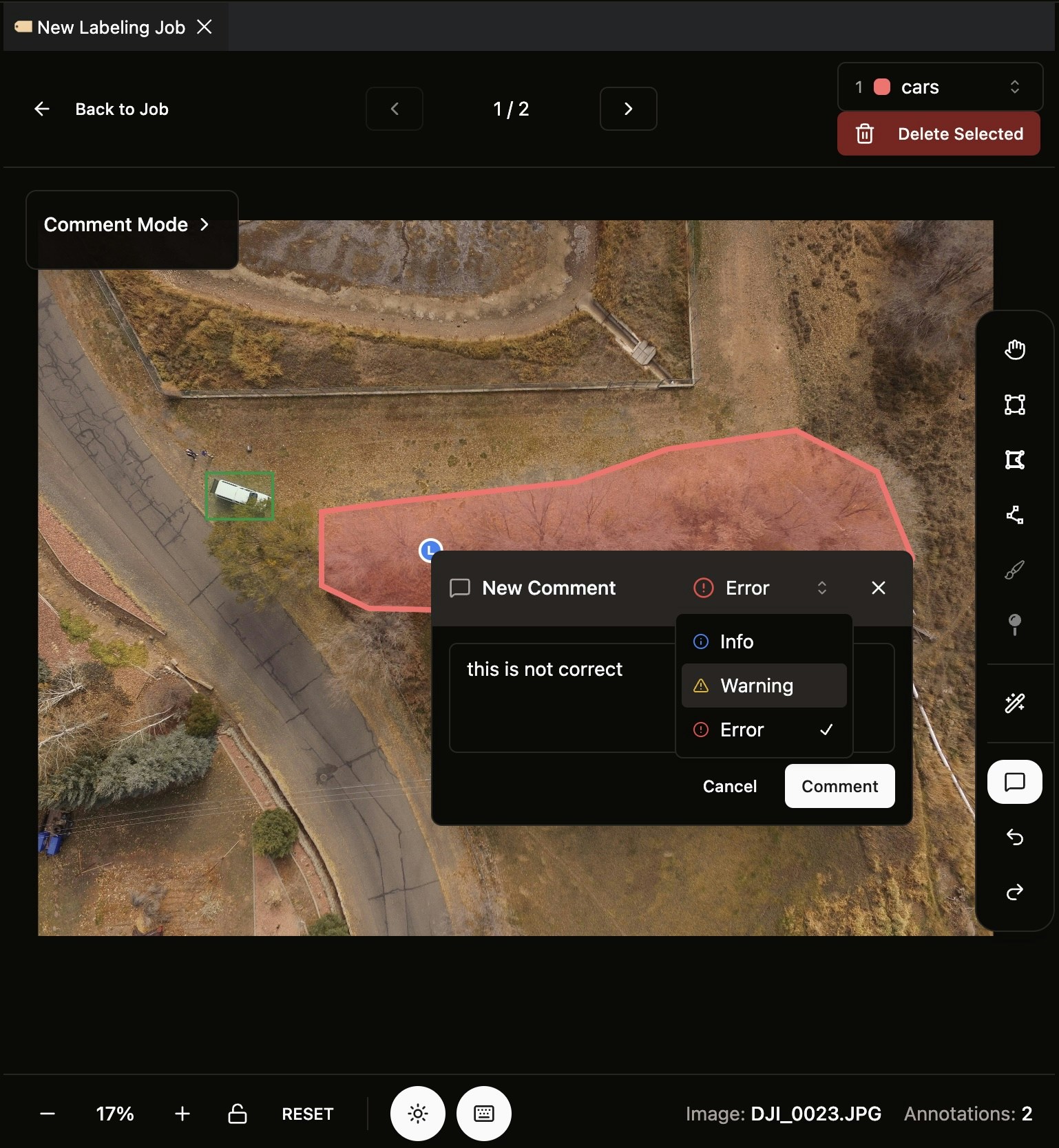 To add a comment:
1. Click the comment button on the right
2. Click anywhere on the image to drop a comment there
Comment levels available:
* **INFO**: General information or suggestions
* **WARNING**: Issues that should be addressed
* **ERROR**: Critical problems that must be fixed
## Step 2: Manage Issues in the Right Panel
The labeler right panel displays a list of all issues (comments) added to the current image.
To add a comment:
1. Click the comment button on the right
2. Click anywhere on the image to drop a comment there
Comment levels available:
* **INFO**: General information or suggestions
* **WARNING**: Issues that should be addressed
* **ERROR**: Critical problems that must be fixed
## Step 2: Manage Issues in the Right Panel
The labeler right panel displays a list of all issues (comments) added to the current image.
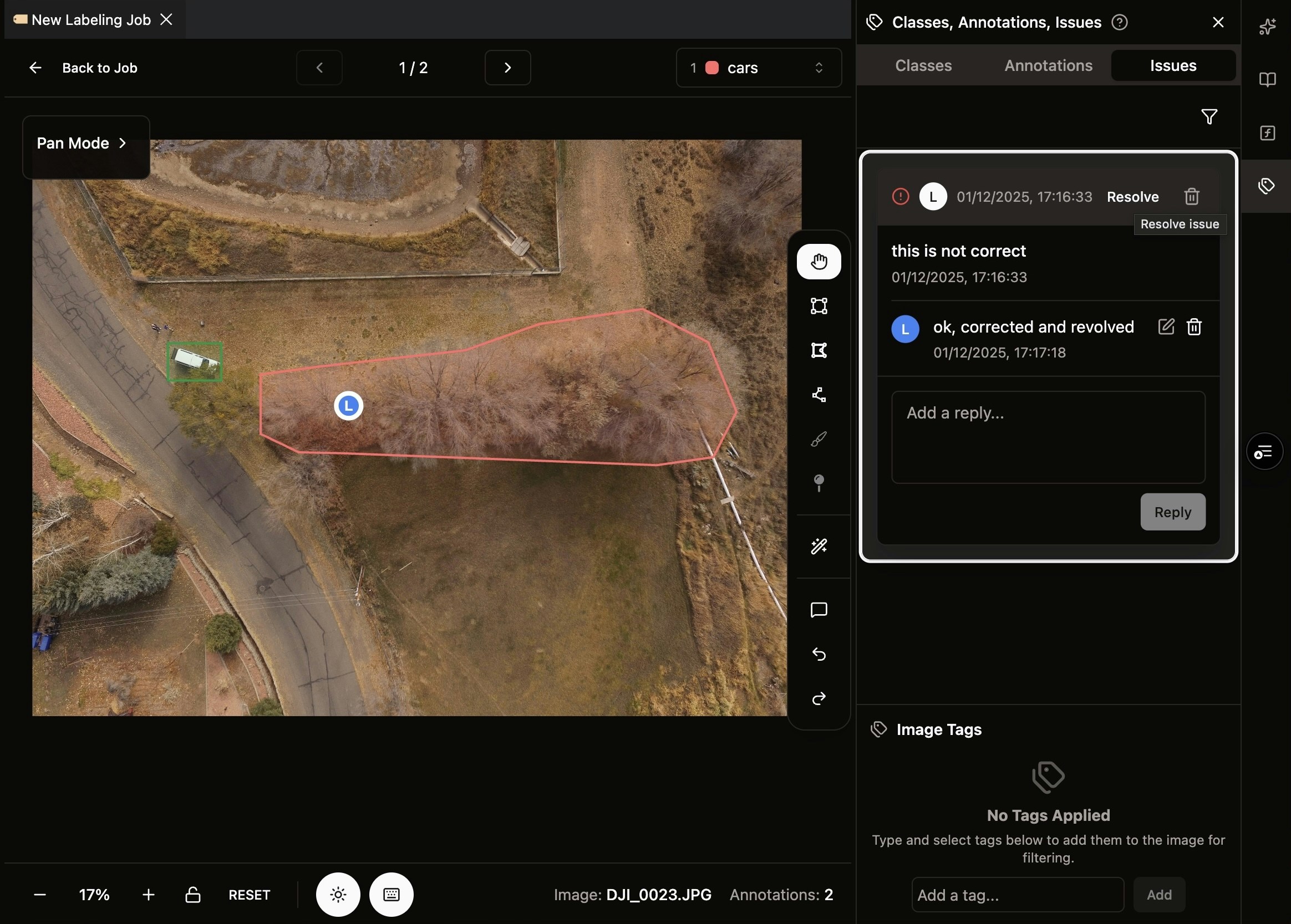 Users can:
* **Reply**: Other users can reply to issues for discussion
* **Resolve**: Mark an issue as resolved once addressed
* **Remove**: Issue owner can remove an issue entirely from the job
## Step 3: Filter and View Resolved Issues
Use the filter at the top right to control which issues are displayed.
Users can:
* **Reply**: Other users can reply to issues for discussion
* **Resolve**: Mark an issue as resolved once addressed
* **Remove**: Issue owner can remove an issue entirely from the job
## Step 3: Filter and View Resolved Issues
Use the filter at the top right to control which issues are displayed.
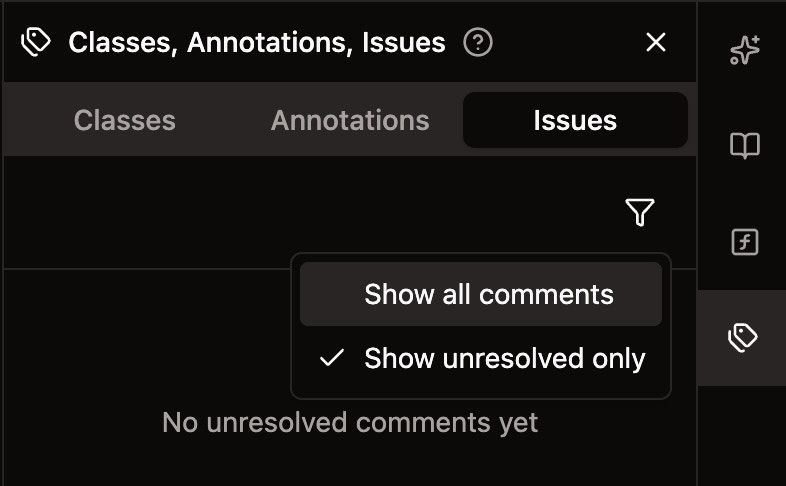 The filter allows you to:
* **Show all issues**: View both open and resolved issues
* **View resolved issues**: See previously resolved issues
* **Reopen issues**: Reopen resolved issues for further actions if needed
## Step 4: Approve or Reject the Job
Once you've finished reviewing all images, you can approve or reject the job overall.
The filter allows you to:
* **Show all issues**: View both open and resolved issues
* **View resolved issues**: See previously resolved issues
* **Reopen issues**: Reopen resolved issues for further actions if needed
## Step 4: Approve or Reject the Job
Once you've finished reviewing all images, you can approve or reject the job overall.
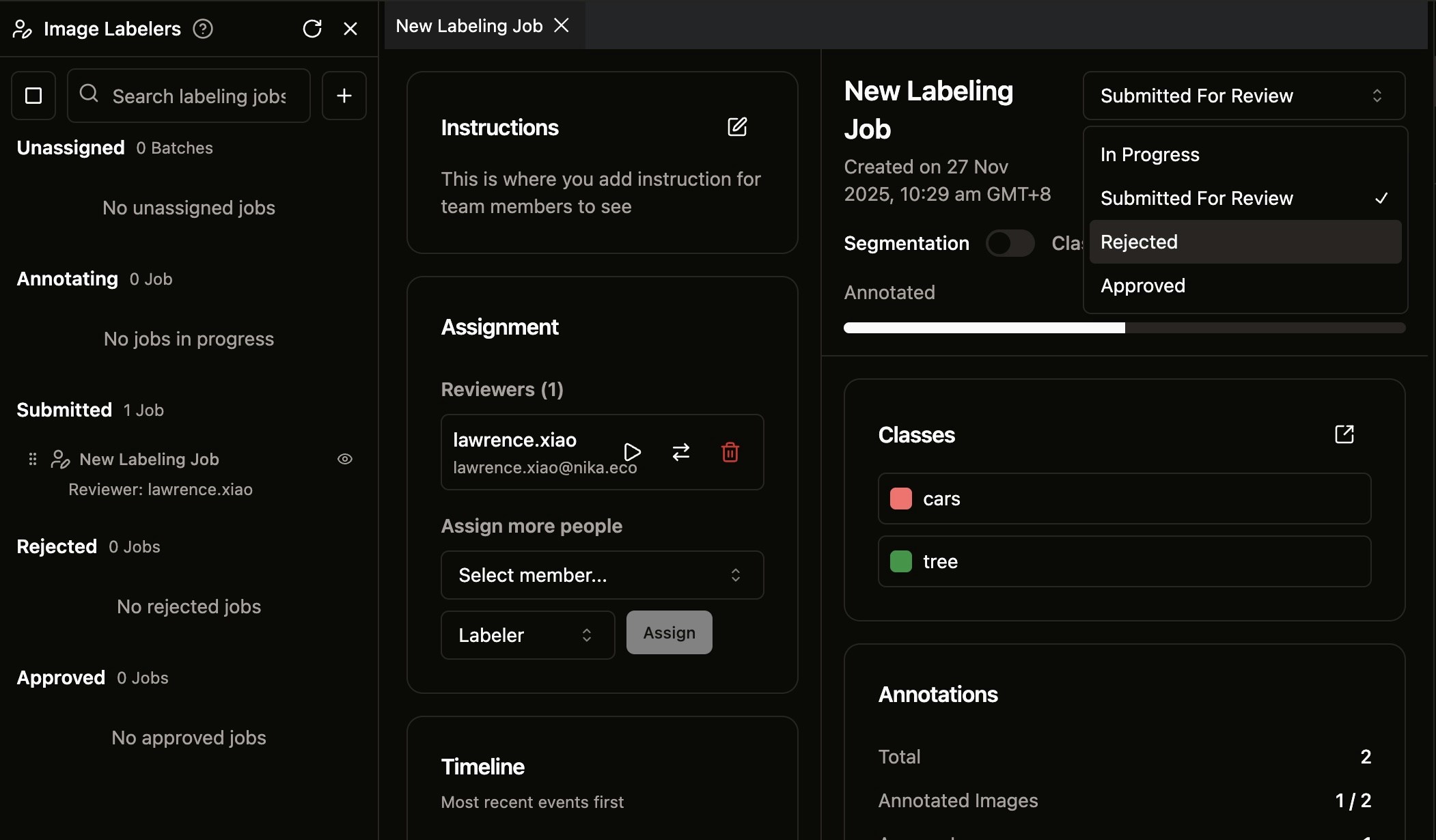 As a reviewer:
1. Go back to the job overview page
2. Click **Reject** or **Approve** at the top right
This completes the review cycle and notifies the labeler of the outcome.
Happy labeling!
As a reviewer:
1. Go back to the job overview page
2. Click **Reject** or **Approve** at the top right
This completes the review cycle and notifies the labeler of the outcome.
Happy labeling!