Prerequisites
- NikaField Application installed on your mobile device.
- Pre-configured survey plans and schemas on your Nika dashboard.
Step 1: Selecting the Survey
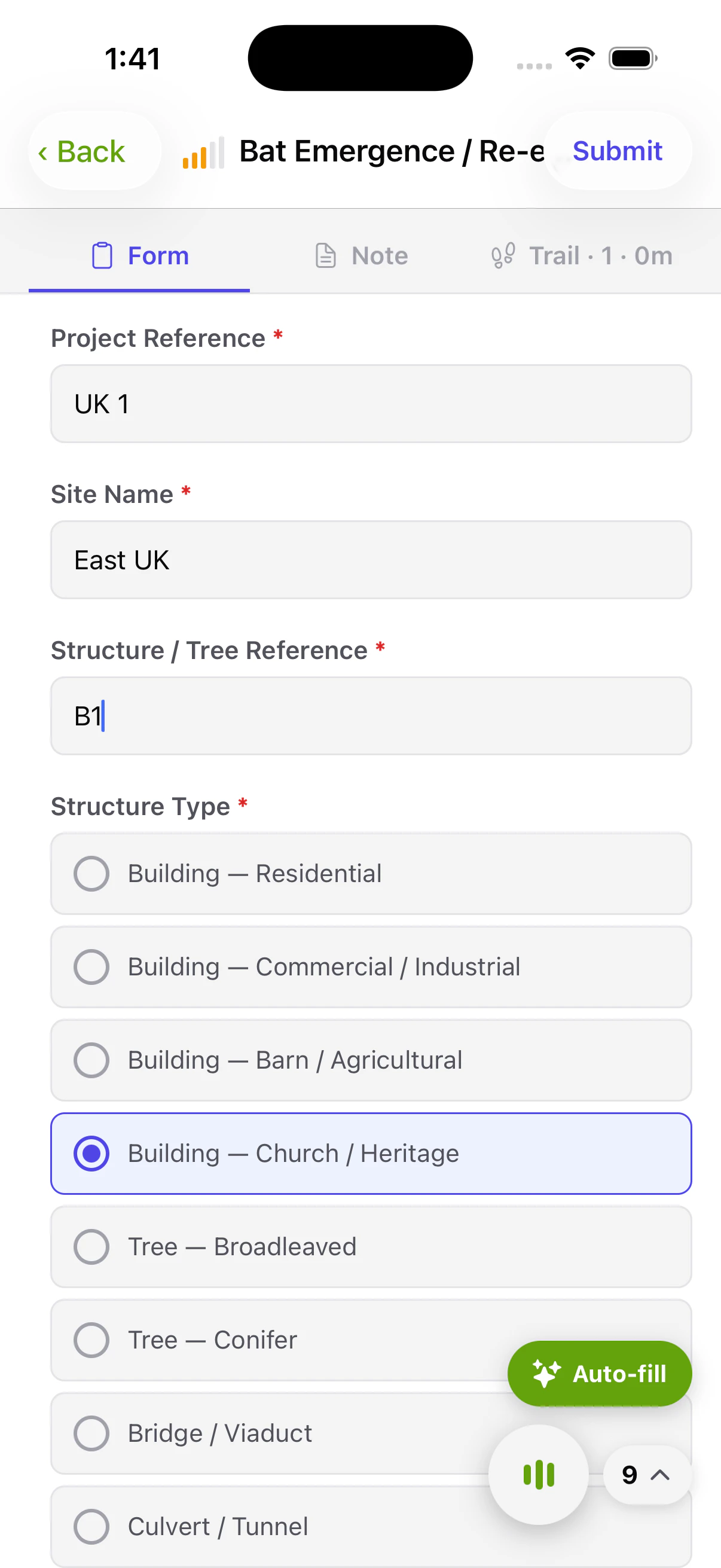
When you arrive at the survey site, open NikaField. You’ll land on your Survey List.- Locate the correct site from your synchronized plans.
- Tap on the desired survey to view the designated target nodes and tasks.
Step 2: Utilizing the GPS Trail
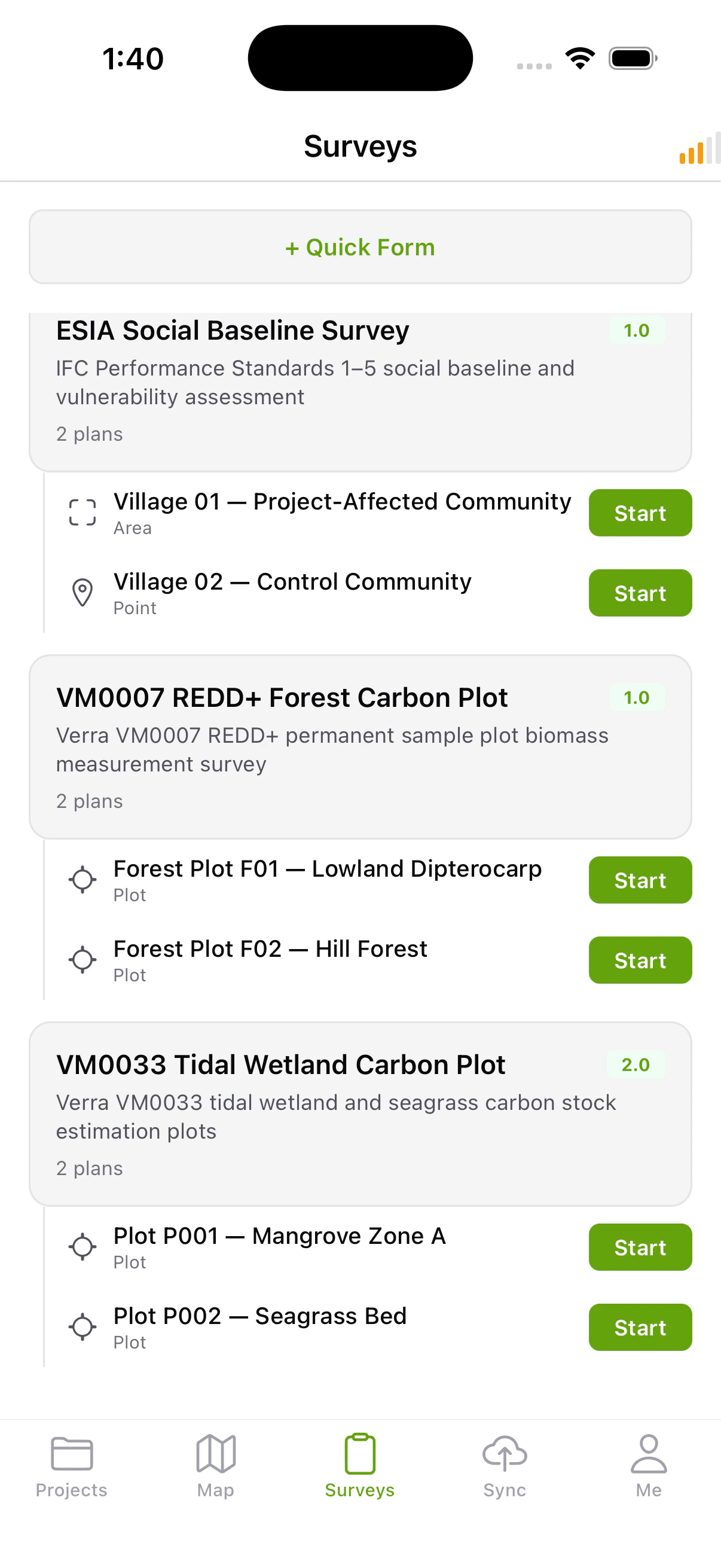
It’s critical for methodologies like Biodiversity Net Gain (BNG) walks and bat transects to have proof-of-coverage.- Within the survey view, switch to the map tab to see your GPS Trail.
- Start walking your transect or plot. NikaField logs your pathway, allowing you to easily view the exact coverage you’ve completed for QA evidence.
Step 3: Entering a Session and Using Voice AI
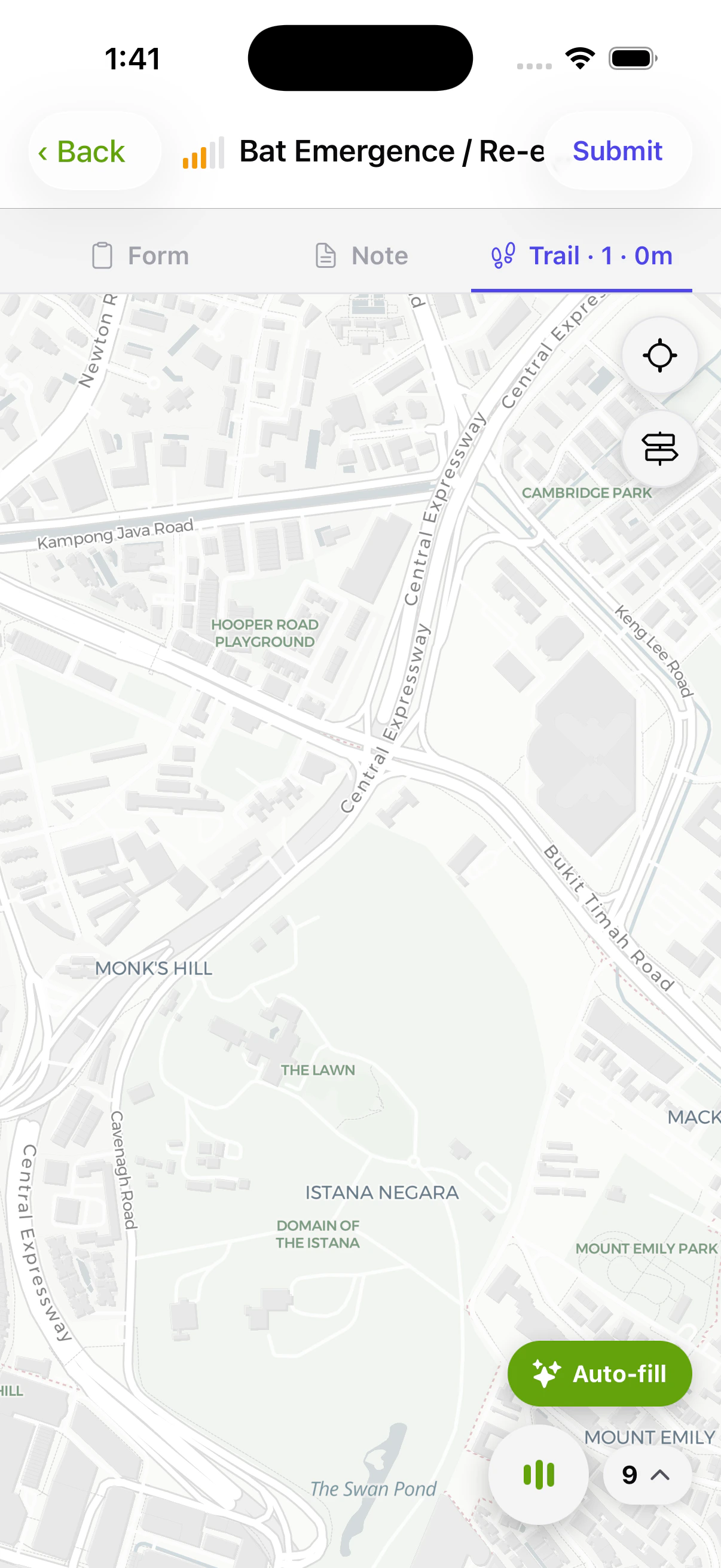
Instead of manually navigating through 15+ form fields, you can use NikaField’s offline, on-device AI to transcribe and organize your observations automatically.- Create a new Survey Session for the current subplot or feature.
- Tap the Audio Mode button to begin recording.
- Simply speak your observations naturally. For example: “The broad habitat is grassland, specifically poor semi-improved. Scattered scrub covers about 15% of the area…”
On-Device Transcription
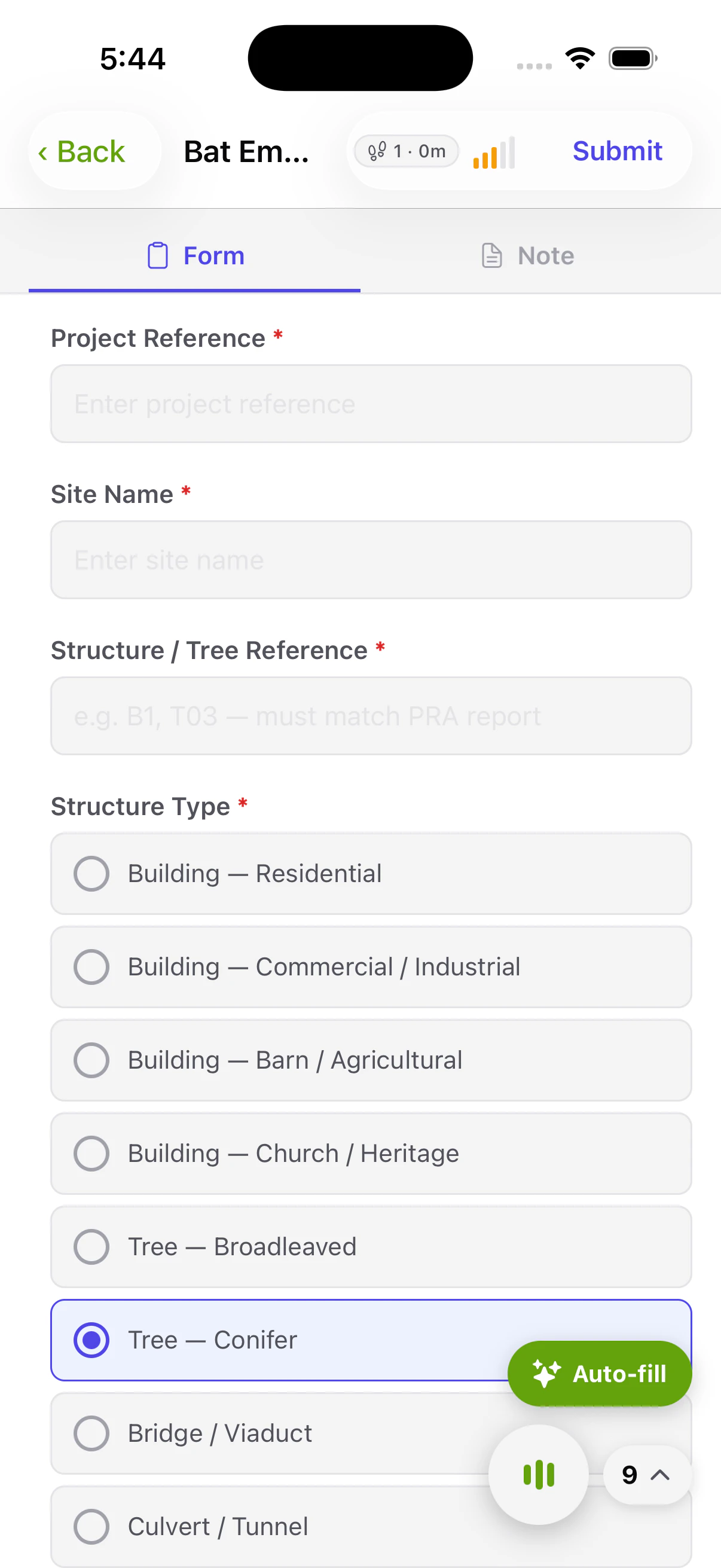
Once you stop recording, NikaField immediately processes your speech into text. Because this uses an on-device model, no internet connection is required.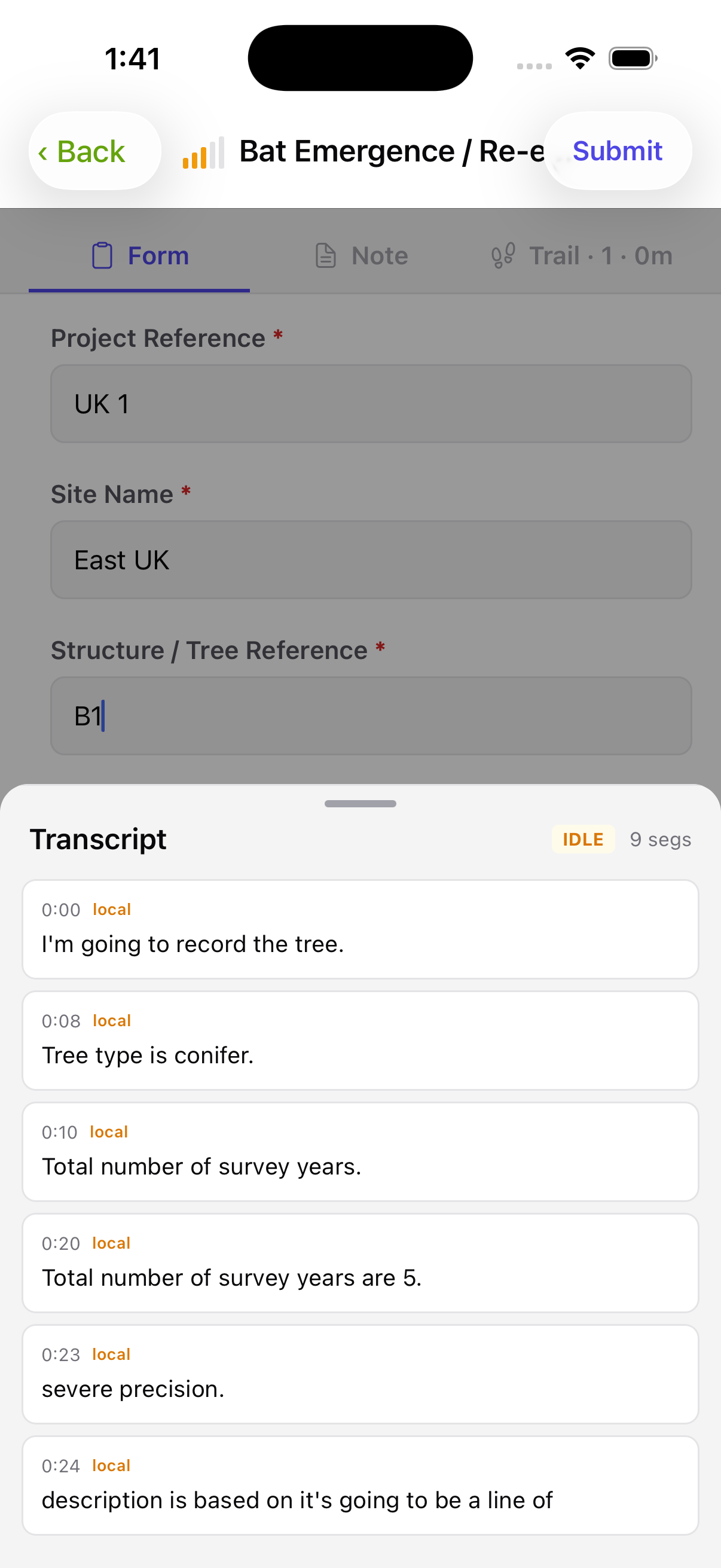
Step 4: AI Auto-Fill
After the transcription is complete, click the AI Auto-Fill action.- The built-in AI assistant automatically maps your spoken sentences to the corresponding fields in your compliance schema.
- Review the structured data—habitat type, coverage percentage, species counts, etc. have all been placed in their correct fields.
- Make any minor adjustments if necessary, then save the session.