- QGIS
- ArcGIS Pro
To submit a job, your team (or a team you have access to) must have a worker deployed to their workspace. To learn more about deploying a worker, see the Geoengine deployment guide.
- Identify the worker you want to run. Take note of the worker’s name and version.
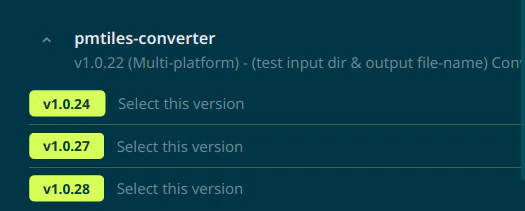
- Click “select this version” to open the job dialog.
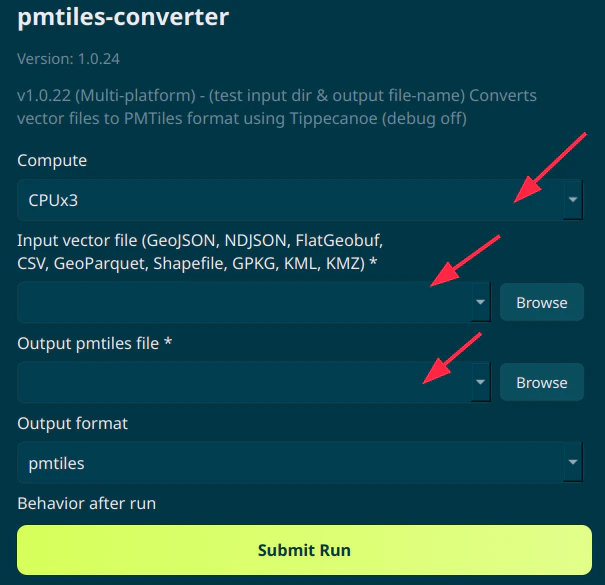
- Fill in the required input parameters and choose an appropriate machine type. Note that larger machines may take longer to start up.
- Configure what you want to do after the job completes:
- Download the outputs to your local machine
- Add the outputs as layers to your QGIS project
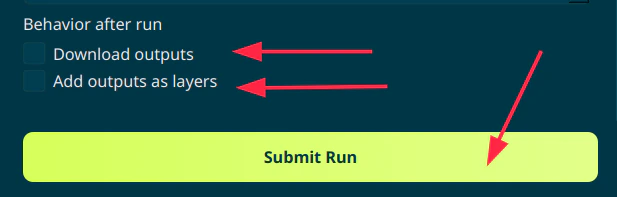
- Click the “Submit Job” button to submit the job. If you choose to download the outputs, you will be prompted to select a folder to download the outputs to.
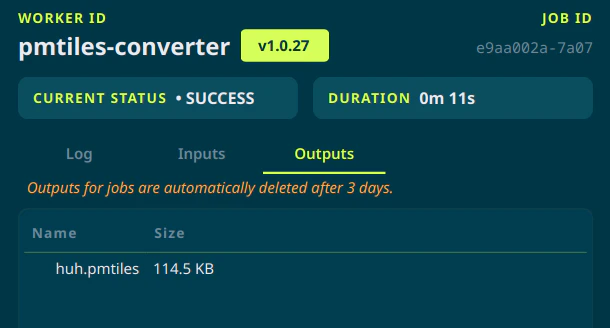
- The job will be submitted and you will be able to view the job in the “Job History” panel.
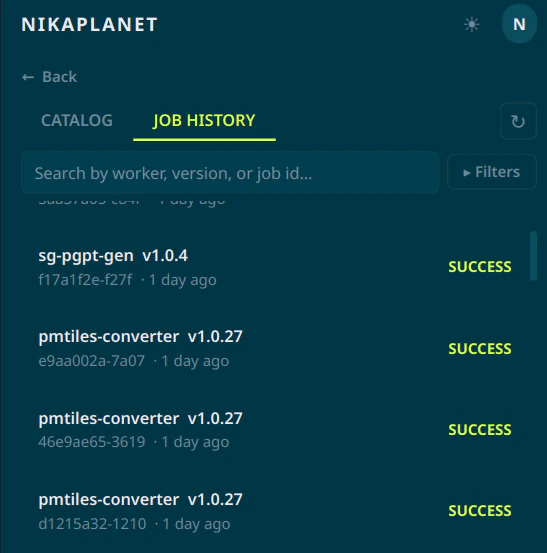
- Once the job completes, you will be able to view the outputs by clicking on the job in the “Job History” panel and clicking on the “outputs” tab.