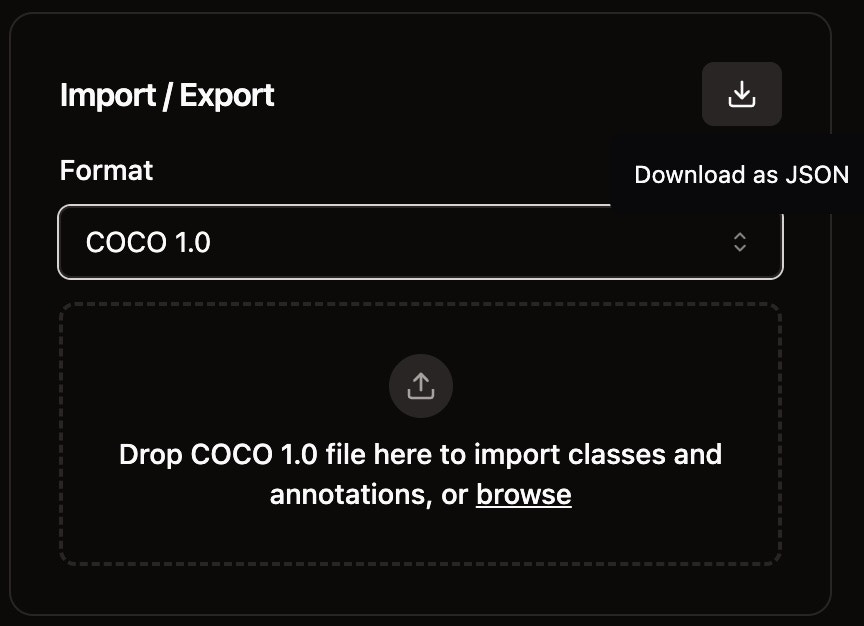
Supported Formats
Nika Labeler supports various annotation formats for import and export:- COCO 1.0 JSON (Currently supported)
- YOLO format (To be confirm)
- Pascal VOC XML (To be confirm)
- LabelMe JSON (To be confirm)
- Custom JSON formats (To be confirm)
Step 1: Import Annotations
To import existing annotations into your labeling job, use the import dropzone.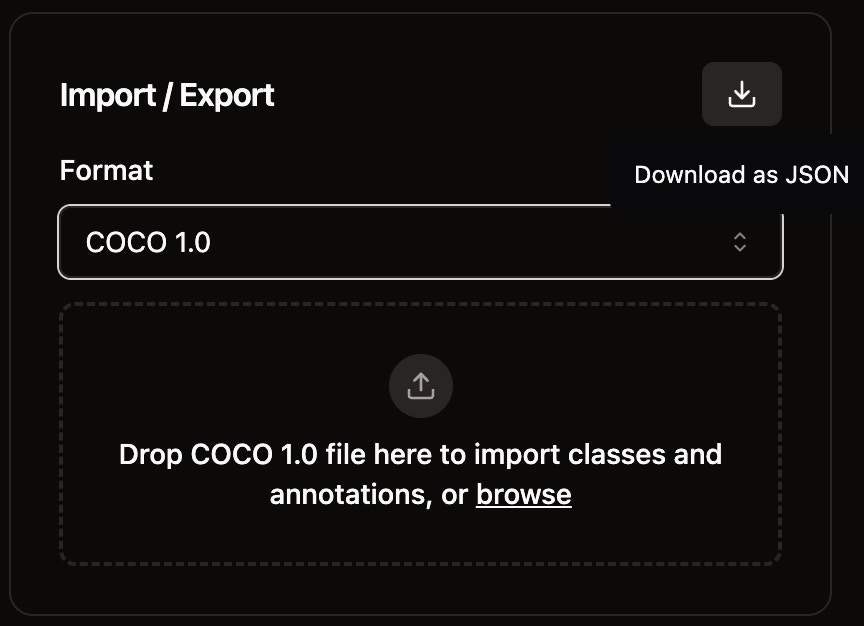
- Click the dropzone: Click to open a file browser and select your annotation file
- Drag and drop: Drop a file from your desktop directly to the dropzone
Step 2: Resolve Import Conflicts
Once the file is validated successfully, a dialog will appear for resolving conflicts before the import.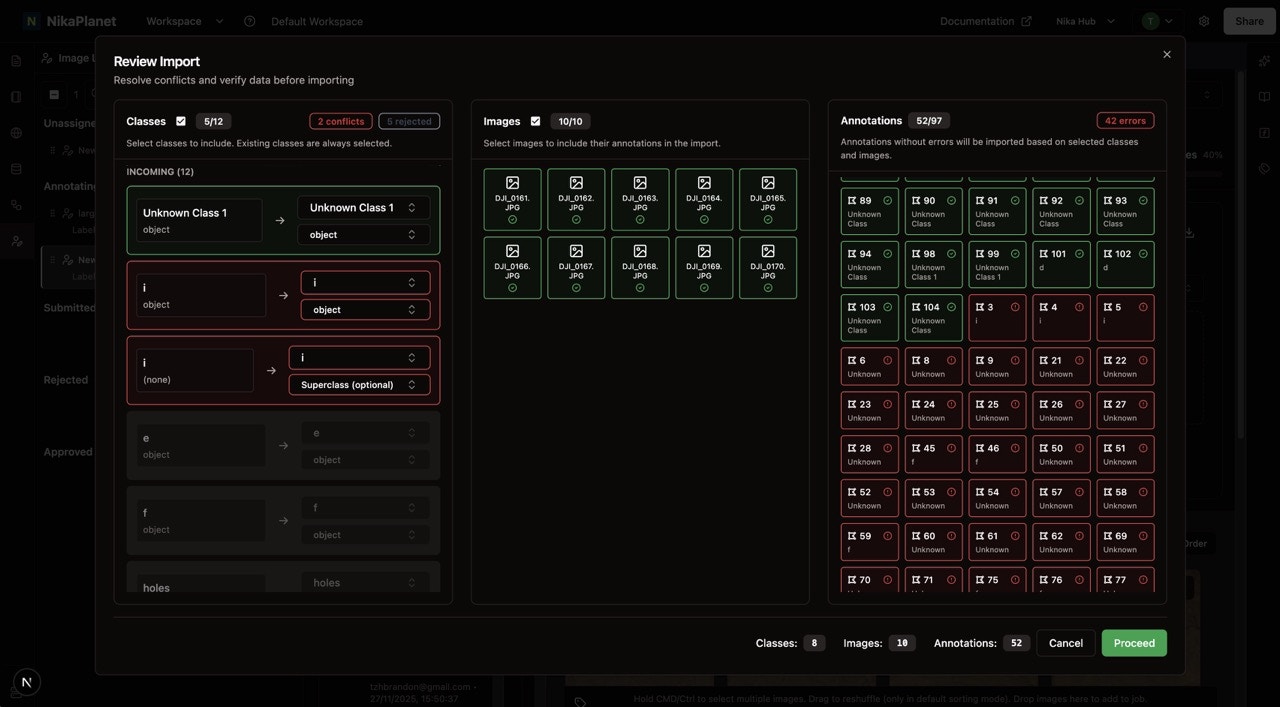
- Merge conflicting classes: Combine classes with similar names
- Rename classes: Adjust class names to match your existing schema
- Select classes: Click on classes to choose whether to include or ignore them
- Select images: Click on images to choose whether to include or ignore them
Step 3: Export Annotations
Once you have completed annotating images in this job, you can export the existing job via the download button.