

Step 1: Enter Drawing Mode
Double click on an image to enter drawing mode on that image.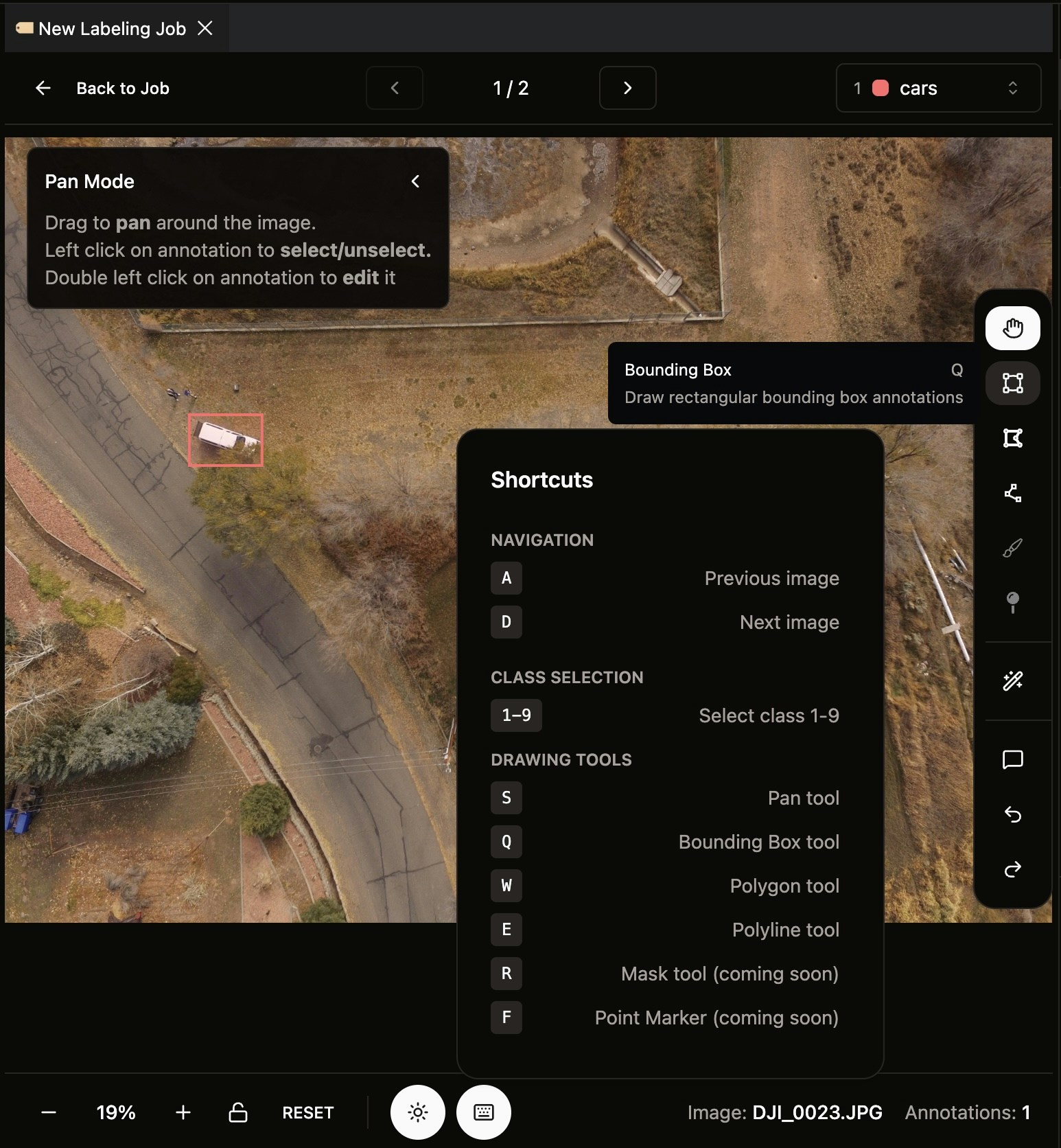
Keyboard Shortcuts
The following keyboard shortcuts are available to speed up your annotation workflow:Navigation
Class Selection (Segmentation Mode Only)
Drawing Tools
Actions
Step 2: Switch Between Classes
In segmentation jobs, you can click the dropdown at top right of the drawing page to switch between classes for your current annotation.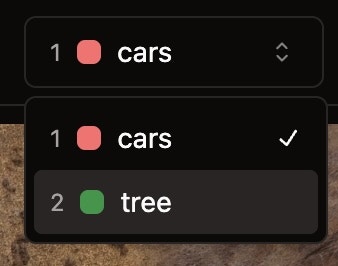
Step 3: Draw Polygons
In polygon mode, you can create precise annotations by clicking to add points.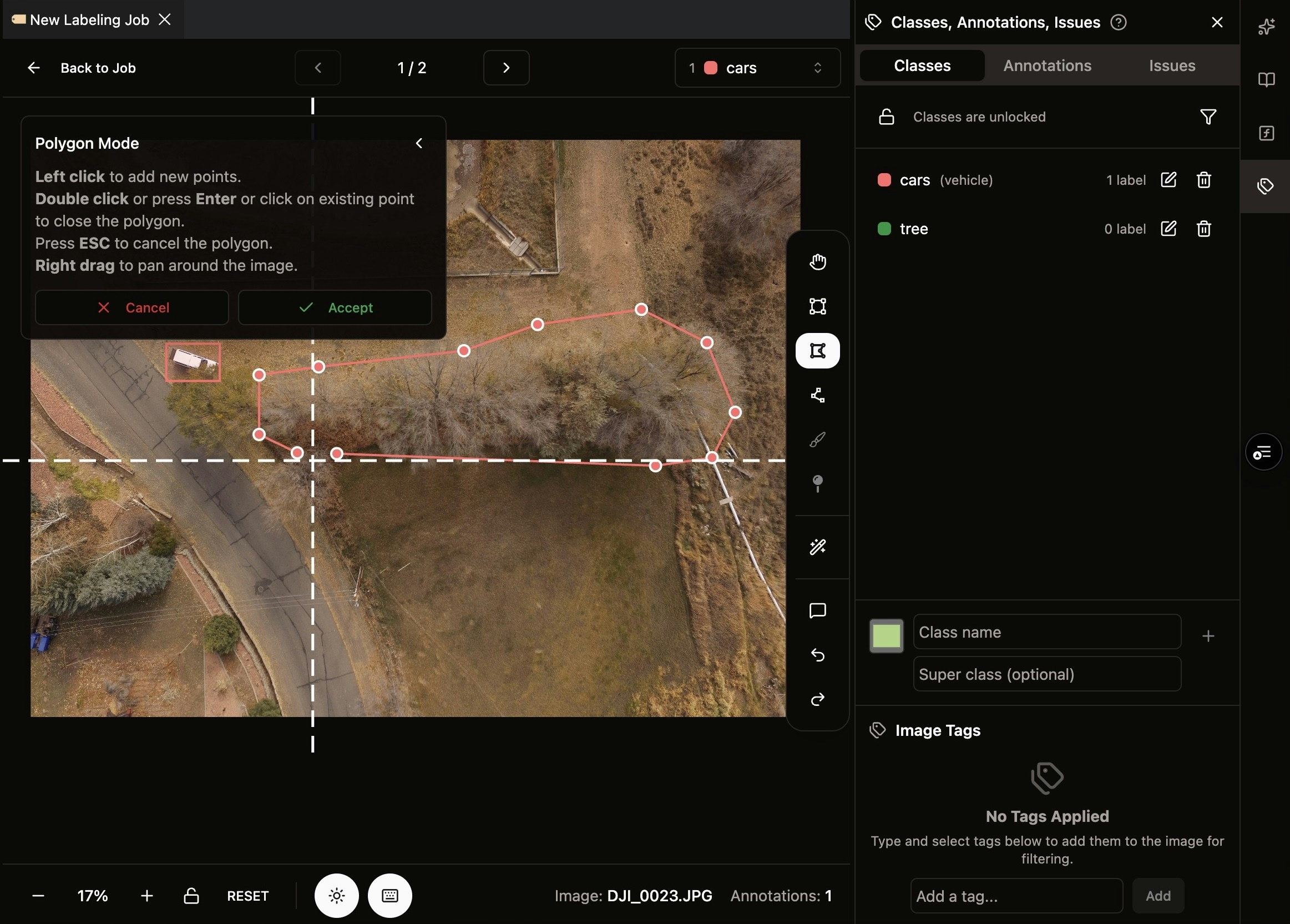
- Click to add a point
- Double click or click again on an existing node to finalize the polygon drawing
Step 4: Use Smart Segmentation
Nika’s smart segmentation tool uses SAM 2.0 from Meta for quick segmentation of parts of the image.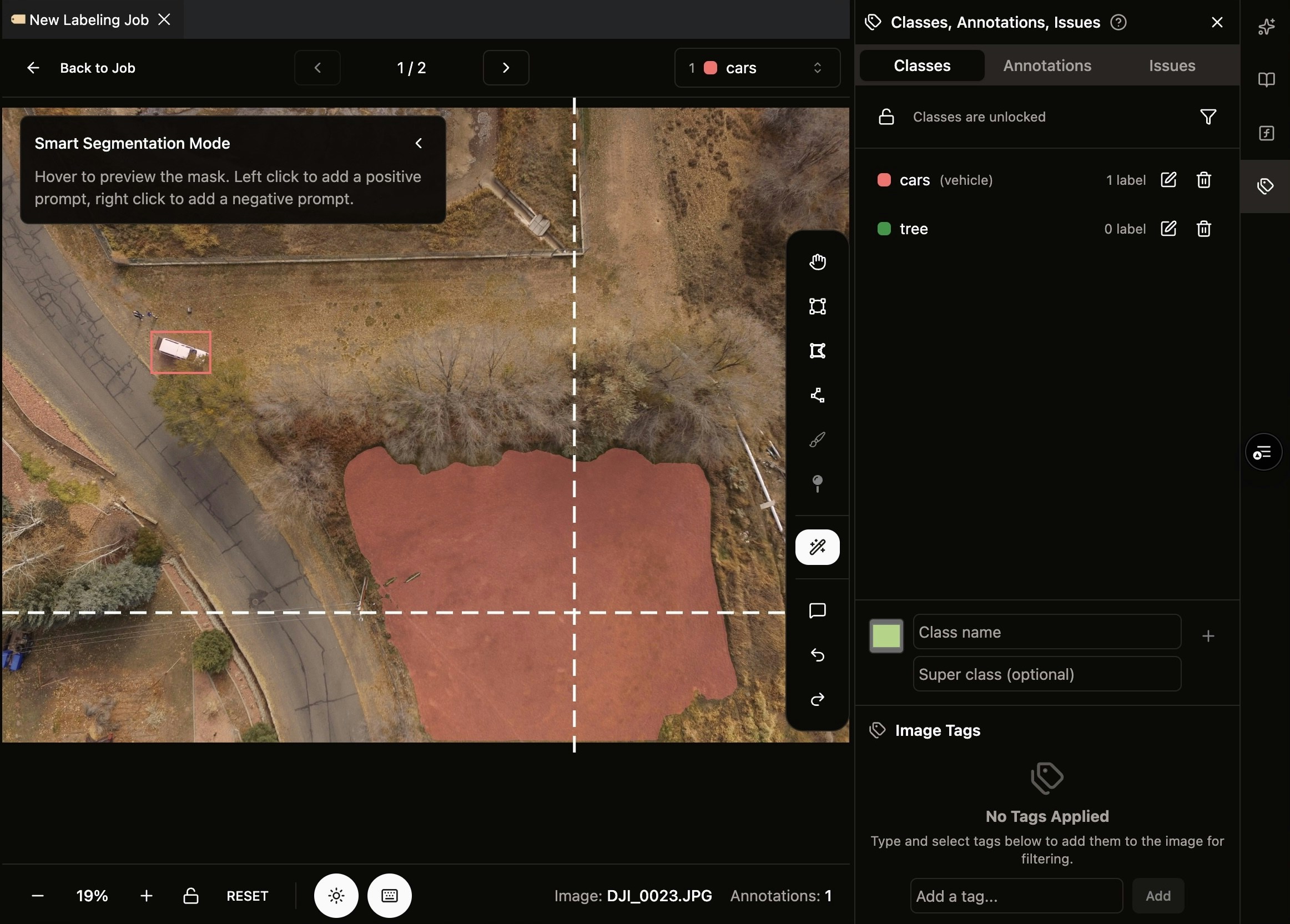
- Define the number of polygons allowed before finalizing
- Adjust the complexity/smoothness of boundary segmented
- Quickly segment complex objects with AI assistance
- Refine the generated polygons as needed
Step 5: Submit for Review
Once you’ve finished annotating all images, you can submit your work for review.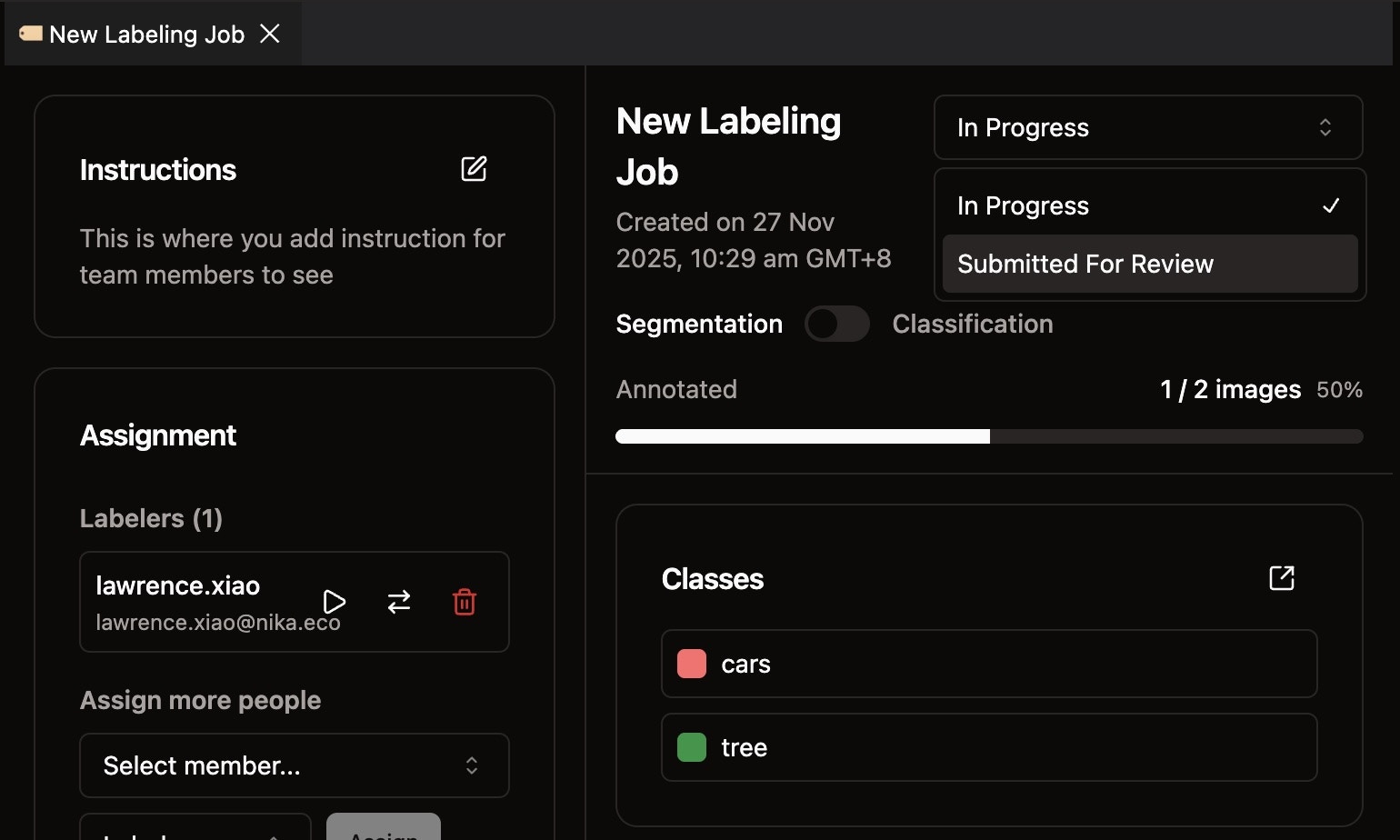
- Go back to the job page
- Click the top right status select dropdown
- Select Submit for Review