

Step 1: Create a New Labeling Job
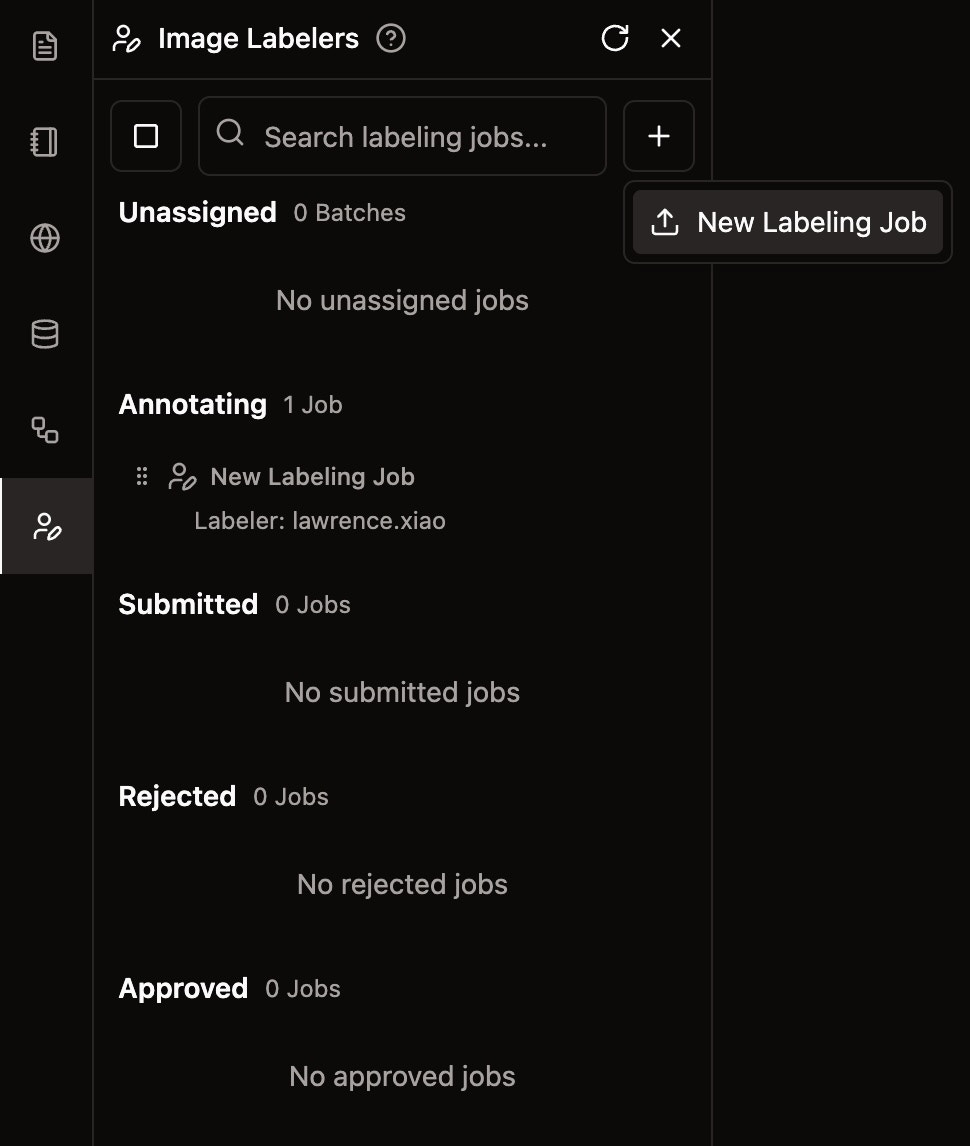
- Navigate to Nika Labeler: In NikaWorkspace, click on the Labeler icon in the left sidebar
- Create New Job: Click the ”+” button to create a new labeling job
- Configure Job Settings: Set up your job name and initial configuration
Step 2: Switch Between Labeling Modes
Nika Labeler supports different labeling modes to accommodate different annotation workflows. You can easily switch between modes using the switch.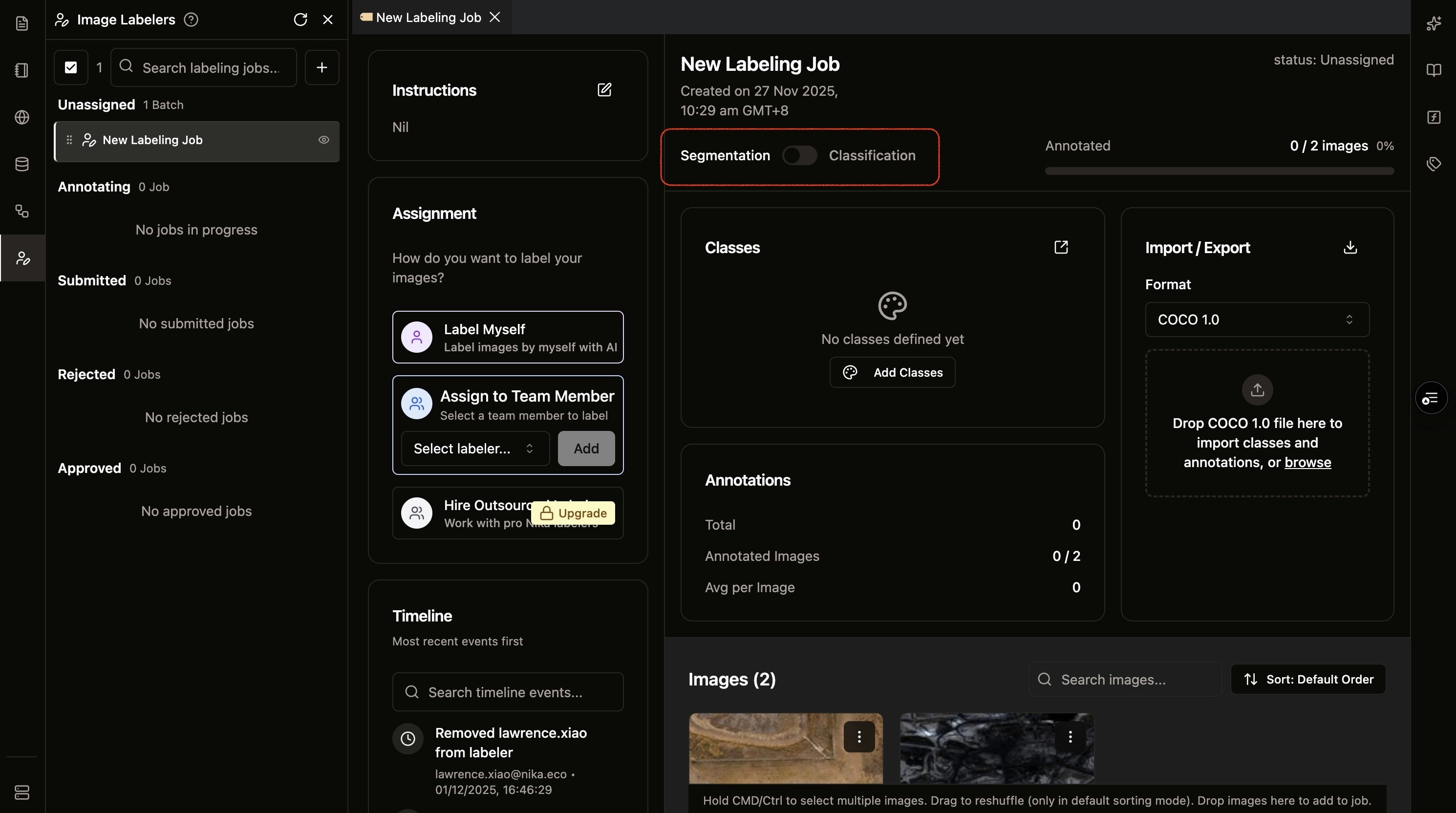
Available Labeling Modes
- Classification Mode: For categorizing entire images with 1 or more classes
- Segmentation Mode: For bounding box, polygon, linestring drawing on images with associated classes
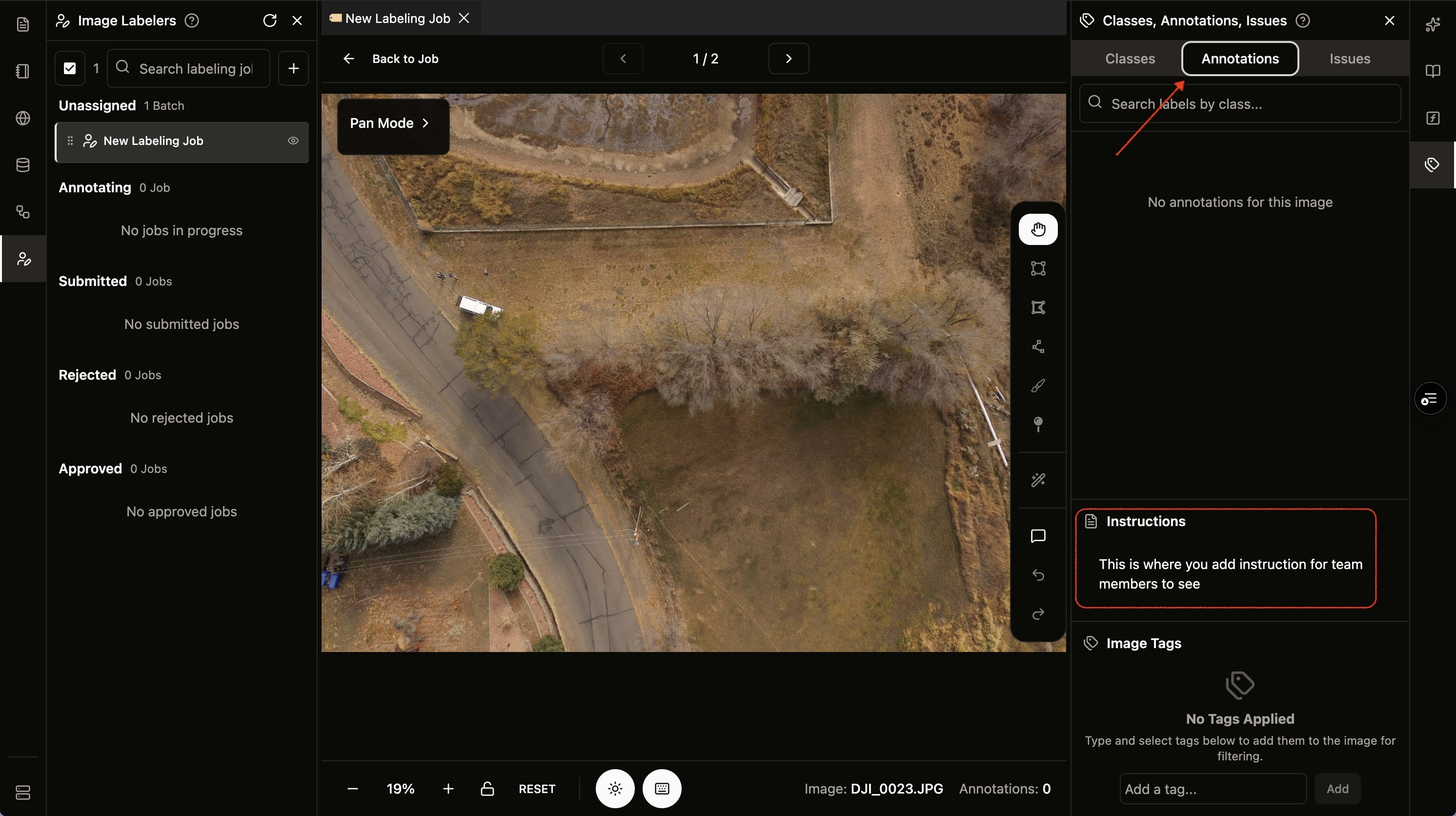
Step 3: Edit Job Instructions
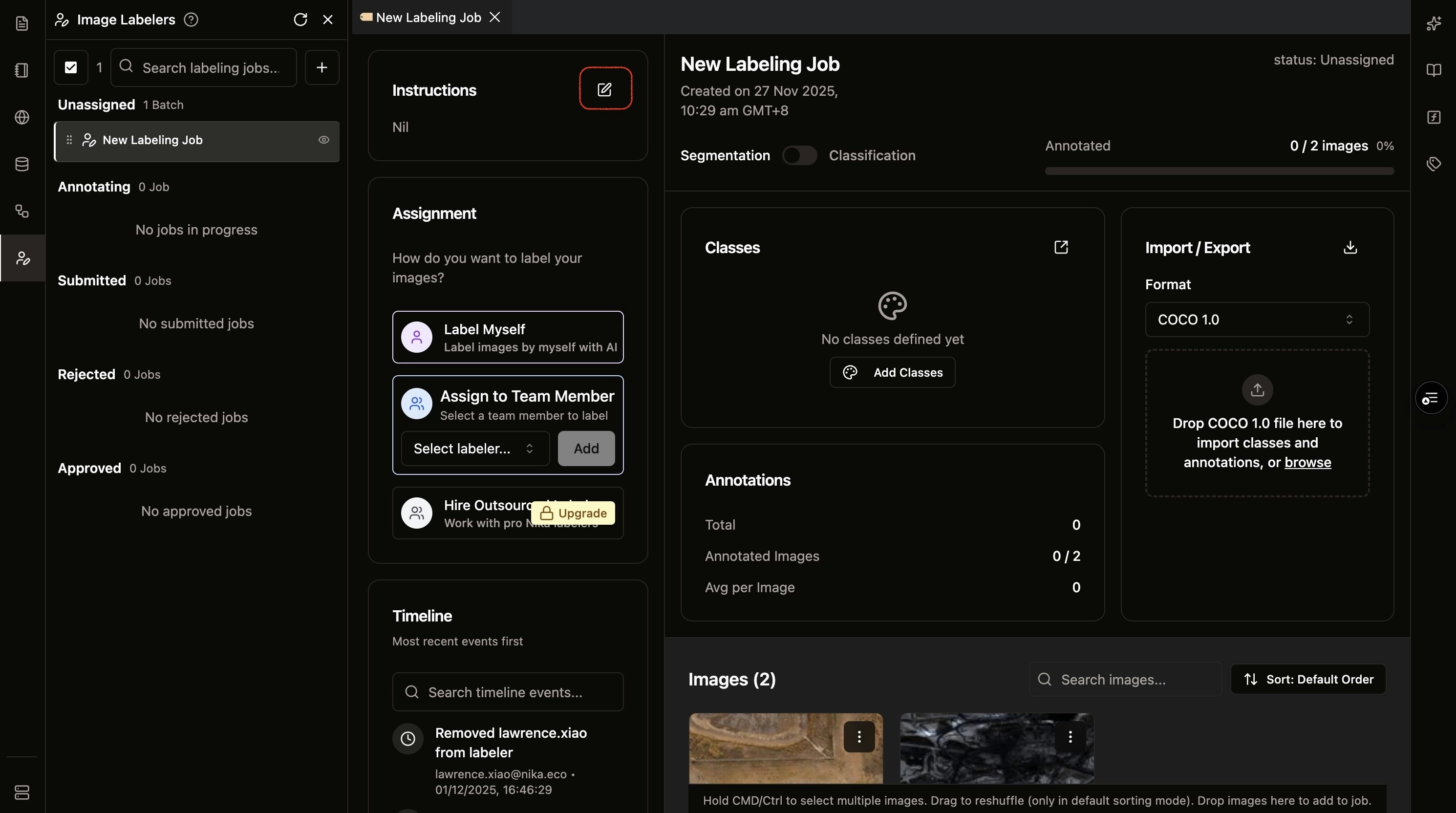
Clear instructions are essential for consistent annotations. Set up detailed guidance that assignees will reference while labeling.- Click Edit Instructions: Click the instruction editor button to open the instruction panel
-
Write Clear Guidelines: Provide detailed instructions for your labeling task
- Describe what to annotate
- Include examples of edge cases
- Specify quality standards
- Add any project-specific requirements
- Save Instructions: Click ”✅” to finalize your instructions
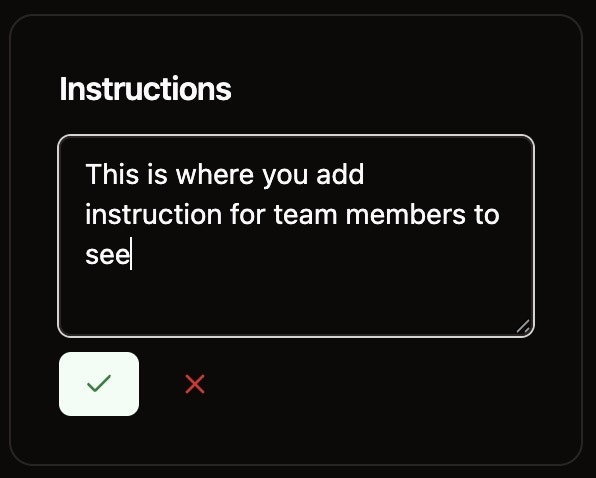
Step 4: Add Images to Your Labeling Job
Now that your job is configured with instructions, it’s time to add the images that need to be labeled. Nika Labeler provides two convenient ways to add images to your job.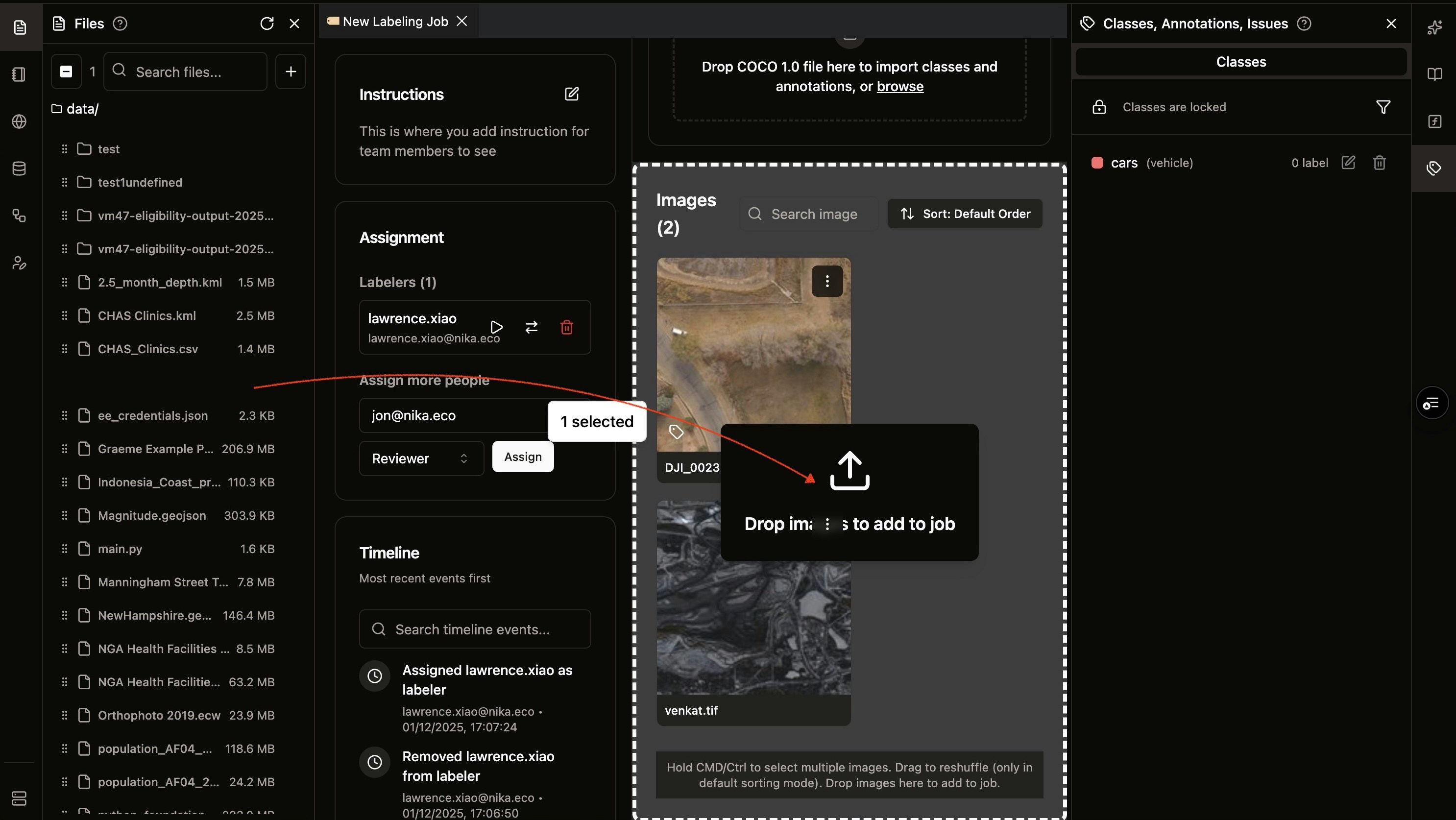
Method 1: Drag and drop from Nika File Storage
- Open File Storage: Access your files from the left sidebar in NikaWorkspace
- Select Files or Folders: Choose the images or folders containing images you want to label
- Drag to Images Section: Drag and drop the selected files or folders directly to the images section of your labeling job
Method 2: Drag and drop from Desktop
- Locate Files on Desktop: Find the images on your local computer
- Drag Directly: Drag the files from your desktop (or any local folder) directly to the images section
- Upload Automatically: The files will be uploaded and added to your labeling job automatically
Job Ready for Assignment
Your labeling job is now configured and ready to be assigned to team members! The job includes: ✅ Configured labeling mode✅ Clear instructions for assignees
✅ Proper setup for consistent annotations Happy labeling!