

Prerequisites
Before installing GeoEngine, make sure you have the following:Required
- Docker — GeoEngine runs all workers in Docker containers. Install Docker Desktop (macOS/Windows) or Docker Engine (Linux) and ensure it is running before using any GeoEngine commands.
Optional
- GIS Platform(s) — Install one or both if you want to run workers directly from your GIS software:
- QGIS (open source)
- ArcGIS Pro
- AI Agent(s) — Install one or more if you want to use AI to create and manage workers automatically:
- Claude Code by Anthropic (recommended)
- Cursor by Cursor AI
- GitHub Copilot by VS Code / Microsoft
- Codex by OpenAI
- Antigravity by Google
- NIKA local agent tooling, if your organisation uses it
Step 1: Install GeoEngine
Choose the installation method that matches your platform:- macOS
- Windows
- Linux
Homebrew (recommended)Shell script (alternative)
Offline / Air-Gapped Installation
If your machine has no internet access, copy thegeoengine binary to the target machine first, then run:
Setup Troubleshooting
- macOS
- Windows
- Linux
Xcode Command Line Tools ErrorGeoEngine itself does not depend on Xcode — it runs workers inside Docker containers. However, Homebrew (the macOS package manager used to install the GeoEngine CLI) requires the Xcode Command Line Tools to compile and link packages during installation. Without a compatible version of Xcode or its Command Line Tools, Homebrew cannot build the dependencies it needs, and the You need to install or update Xcode before proceeding:
brew install geoengine step will fail.If you see errors related to Xcode or Xcode Command Line Tools when using Homebrew — such as:- Visit the Apple Developer Downloads page
- Sign in with your Apple ID
- Search for the latest version of Xcode compatible with your macOS version
- Download and install it
- After installation, open a terminal and run:
- Then retry the Homebrew installation:
Step 2: Log In
GeoEngine requires a free Nika account. Run the login command before using worker build, run, registry, and cloud commands:
geoengine auth login again if your credentials expire or become corrupted. Commands such as geoengine setup, geoengine lint, geoengine patch, geoengine update, and geoengine uninstall do not require login, but worker commands like geoengine apply, geoengine run, geoengine workers, and geoengine push will prompt you to log in if your session is missing.
Step 3: Initialise AI Agent Skills (Optional)
If you have an AI agent installed, run the following to install the GeoEngine skill bundle into your agent:- Claude (Anthropic) — recommended
- Cursor (Cursor AI)
- GitHub Copilot (VS Code / Microsoft)
- Codex (OpenAI)
- Antigravity (Google)
- NIKA (local NIKA tooling)
use-geoengine. That skill contains the internal workflow guidance, references, and templates needed for worker creation, YAML updates, dependency updates, tests, cloud push, and maintenance commands. Skills that are already up to date are skipped; changed or missing files are installed automatically.
To install skills for one agent non-interactively, pass --agent:
Verify Skills Are Working
After installing, open your AI agent and run the following prompt:use-geoengine), the installation was successful.
If the agent does not mention the GeoEngine skill in its response, try prompting more specifically:
~/.claude/skills for Claude Code) and restart your agent.
See Create & Modify a Worker Using AI Coder for the full workflow.
GIS Plugin Installation (If Using QGIS or ArcGIS Pro)
This step is only required if you plan to run GeoEngine workers from QGIS or ArcGIS Pro. If you only use the CLI or AI agents to run workers, you can skip this step entirely.
plugins: section in geoengine.yaml.
If you upgrade GeoEngine later, run geoengine patch to bring all plugins back in sync:
Next Steps
You are now ready to start using GeoEngine! Follow the step-by-step guide to create your first worker!Enabling GIS Plugin
This section will only apply after you have done the
geoengine setup plugins step. It is included for your information, but not part of
GeoEngine’s core installation.- QGIS
- ArcGIS Pro
You can install QGIS from the QGIS website.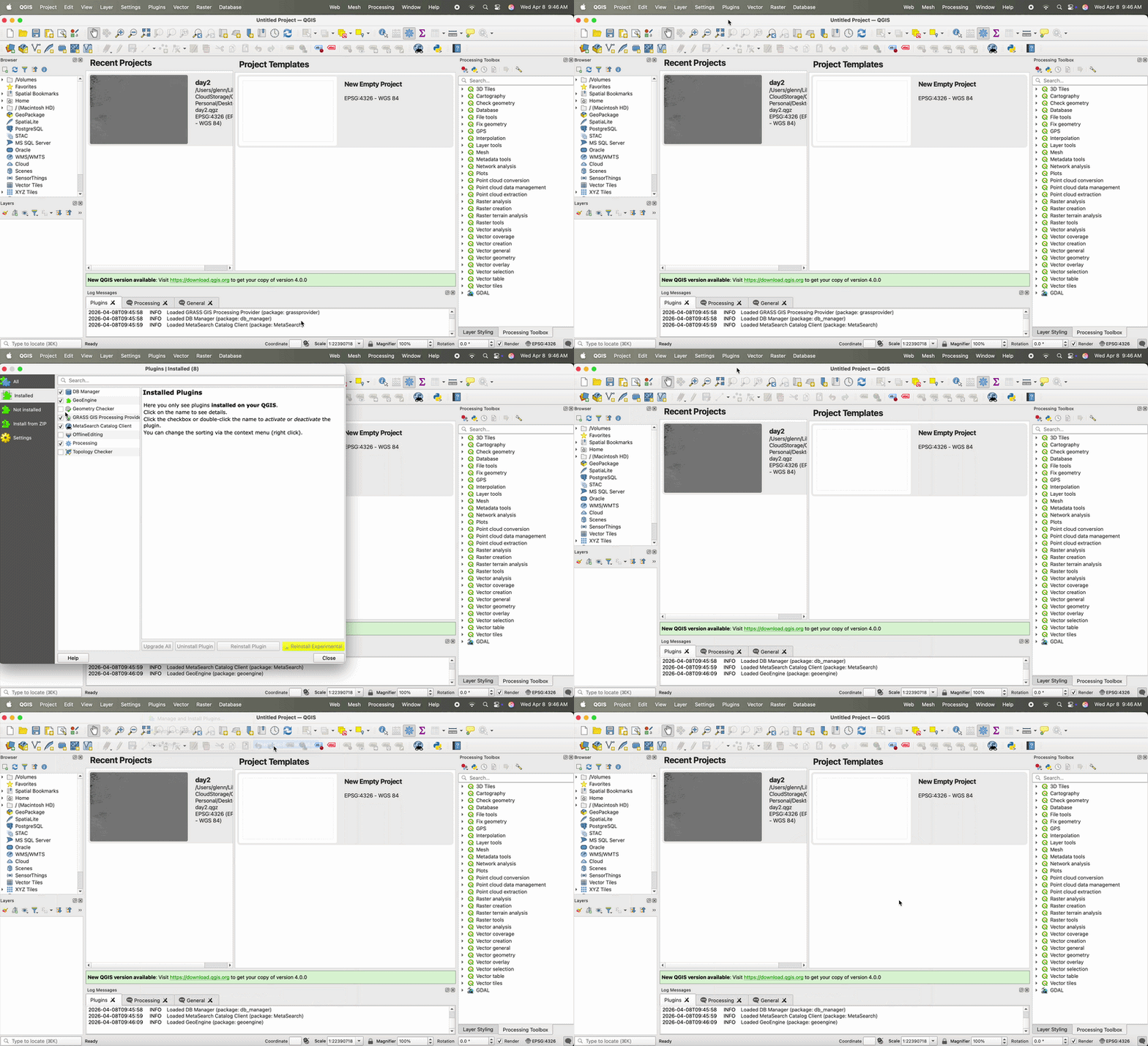
- Run
geoengine setup plugins --qgis, or select QGIS from the interactive plugin menu. - Open QGIS and in the top bar, click Plugins > Manage and Install Plugins…
- Navigate to the Installed tab and enable the GeoEngine plugin
- GeoEngine will now be available in the Processing menu